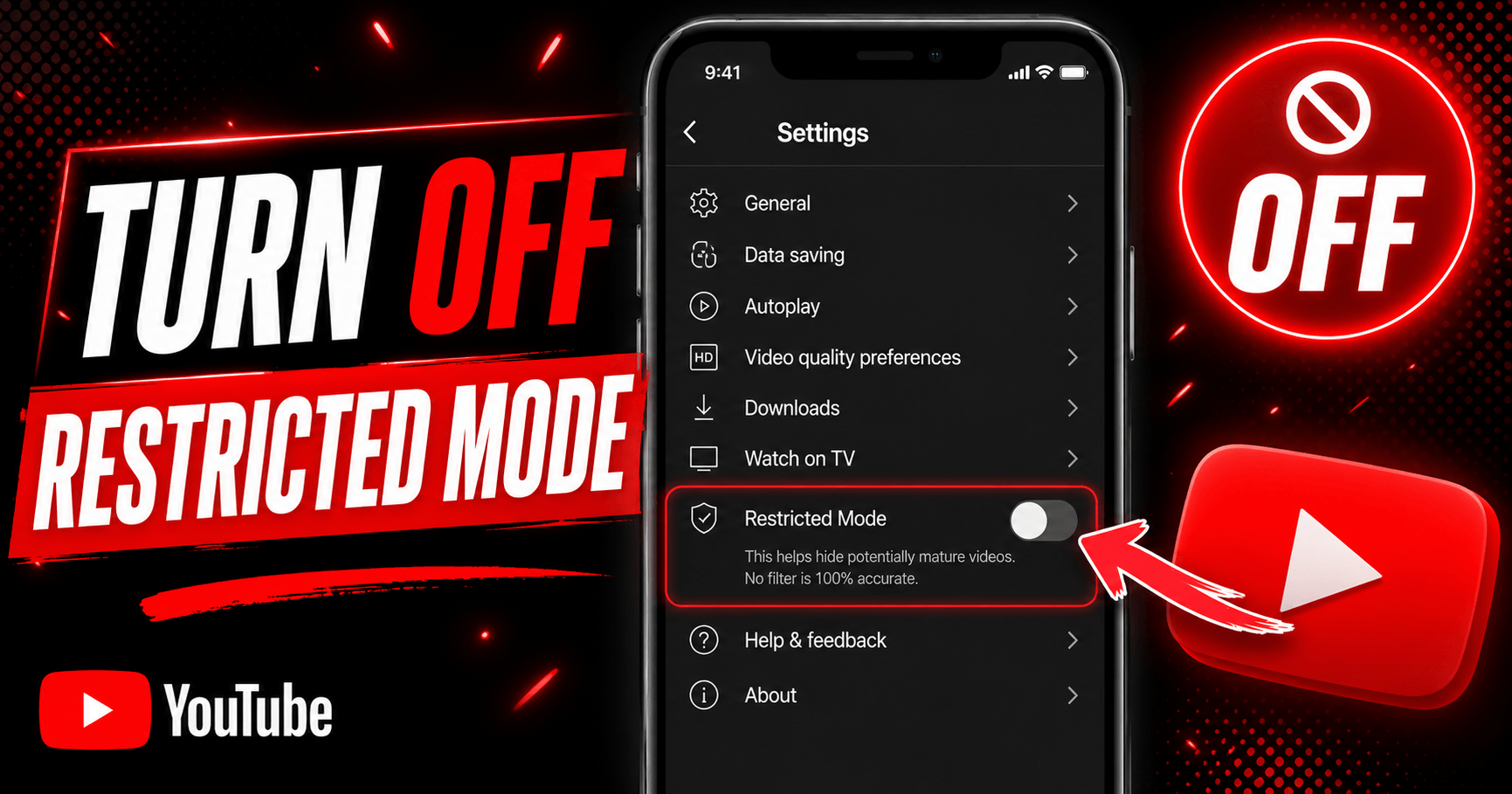
To turn off Restricted Mode on YouTube, tap your profile photo, open Restricted Mode (or Settings > General on mobile), and switch the toggle off. You’ll need to do this separately on every browser, app, and device you use, since Restricted Mode isn’t tied to your account, it’s tied to the device and browser you’re signed into.
That last part trips up more people than the toggle itself. Someone disables Restricted Mode on their phone, then can’t figure out why every video on their laptop still comes back filtered. Nothing’s broken. The setting just didn’t travel with you.
Here’s how to turn it off wherever it’s turned on, and what to do when the toggle won’t budge.
Turn off Restricted Mode on desktop
1. Open YouTube in your browser and make sure you’re signed in.
2. Click your profile picture in the top-right corner.
3. Select Restricted Mode from the menu that opens.
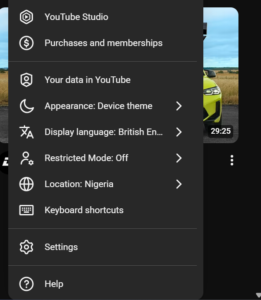
4. In the box that appears, click Activate Restricted Mode to switch it off.
The toggle turns gray when it’s off. If you use more than one browser profile, say, a work Chrome profile and a personal one, repeat this on each. YouTube treats them as separate sessions even if you’re logged into the same Google Account on both.
Turn off Restricted Mode on the mobile app
1. Open the YouTube app and sign in.
2. Tap your profile photo, top right.
3. Tap Settings, then General.
4. Find Restricted Mode and switch it off.
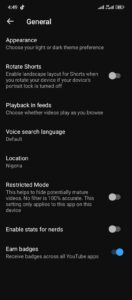
On m.youtube.com (the mobile browser version rather than the app), the path is slightly different: profile photo > Settings > Account > Restricted Mode. It’s a small distinction, but if you’re following app instructions in a mobile browser, the setting won’t be where you expect.
Turn off Restricted Mode on smart TVs and streaming devices
On the YouTube app for Android TV or a smart TV, go to Settings, scroll to Restricted Mode (sometimes labeled Safety Mode), and select Off. This only affects that specific device, it has no connection to Restricted Mode on your phone or computer, even under the same account.
If you’re using YouTube through a Google Nest Speaker or Smart Display, the control lives in the Google Home app instead: open the device, tap Settings > Notifications & digital wellbeing > YouTube Settings. Household managers can also lock this setting for every device linked to the home.
Why Restricted Mode won’t turn off
If you’ve flipped the toggle and videos are still getting filtered, something outside your personal settings is enforcing it. In practice, it’s almost always one of four things:
A network administrator locked it. Schools, libraries, and workplaces commonly force Restricted Mode at the network level so it applies to anyone connected, regardless of their own account settings. Switching to mobile data instead of the building’s Wi-Fi is usually the fastest way to confirm this, if the filter disappears, it was the network.
The account is supervised through Family Link. If a Google Account was set up for a child under Family Link, only the parent or guardian can turn Restricted Mode off, and only from the Family Link app on their own device. The child can’t override it locally, by design.
A Google Workspace admin set an organization-wide policy. School and business Google accounts sometimes fall under a Workspace policy called Moderate or Strict Restricted YouTube access. This is set at the admin console level, not the user level, so nothing in your personal YouTube settings can change it.
A browser extension, DNS filter, or mobile carrier is doing the filtering. Some parental-control extensions and DNS-based content filters (and a handful of mobile carriers) rewrite YouTube’s filtering behavior outside of YouTube entirely. Restricted Mode looks “on” because the underlying request is being altered before it reaches YouTube.
Rather than guessing, use YouTube’s own diagnostic page: youtube.com/check_content_restrictions. Sign in and it’ll show a checkmark next to whichever source, network, account, or browser, is actually enforcing the restriction. It won’t fix the problem for you, but it saves you from disabling the wrong thing.
What Restricted Mode actually filters
Restricted Mode isn’t a single switch that hides “mature content” in one obvious category. It works through a filtering system that weighs video titles, descriptions, metadata, and whether a video has already been age-restricted or flagged under YouTube’s Community Guidelines. That’s also why it’s imperfect in both directions: it occasionally filters completely harmless videos with edgy titles, and occasionally misses things it should catch. Turning it off doesn’t just unhide “adult” videos, it also restores comments, which are hidden entirely while Restricted Mode is active.
It’s worth being precise about one thing: Restricted Mode and age-restricted content are not the same system. Age restriction is applied by YouTube or a creator to a specific video and blocks it from anyone not signed in as an adult, full stop. Restricted Mode is a broader, optional filter you or an administrator layer on top, and it can be turned off. Confusing the two is the most common reason people think a video is “permanently blocked” when it isn’t. Also read how to turn off restricted mode on Tiktok.
Frequently asked questions (FAQs)
How do I turn off Restricted Mode on YouTube on my phone?
Open the YouTube app, tap your profile photo, then go to Settings > General and switch off Restricted Mode. If you’re using the mobile browser instead of the app, the setting is under Settings > Account rather than General.
Why can’t I turn off Restricted Mode on YouTube?
Usually because something outside your account is enforcing it, a school or workplace network, a Family Link supervised account, a Google Workspace policy, or a browser extension or carrier filter. Check youtube.com/check_content_restrictions to see which one applies to you.
Is Restricted Mode the same as age-restricted content?
No. Age-restricted content is locked to a specific video by YouTube or its creator and can’t be turned off by a viewer. Restricted Mode is a broader, optional filter applied at the device or network level, and it can always be switched off unless an administrator has locked it.
Does Restricted Mode turn off by itself?
Not on its own, but it also won’t carry over between devices — so if you turned it off on your phone and it’s still on somewhere else, that’s expected, not a bug. Each browser and device keeps its own setting.
How do I check who turned on Restricted Mode on my account?
Go to youtube.com/check_content_restrictions while signed in. YouTube will show which source, your account, your browser, or your network is currently enforcing the restriction.
 Share this post