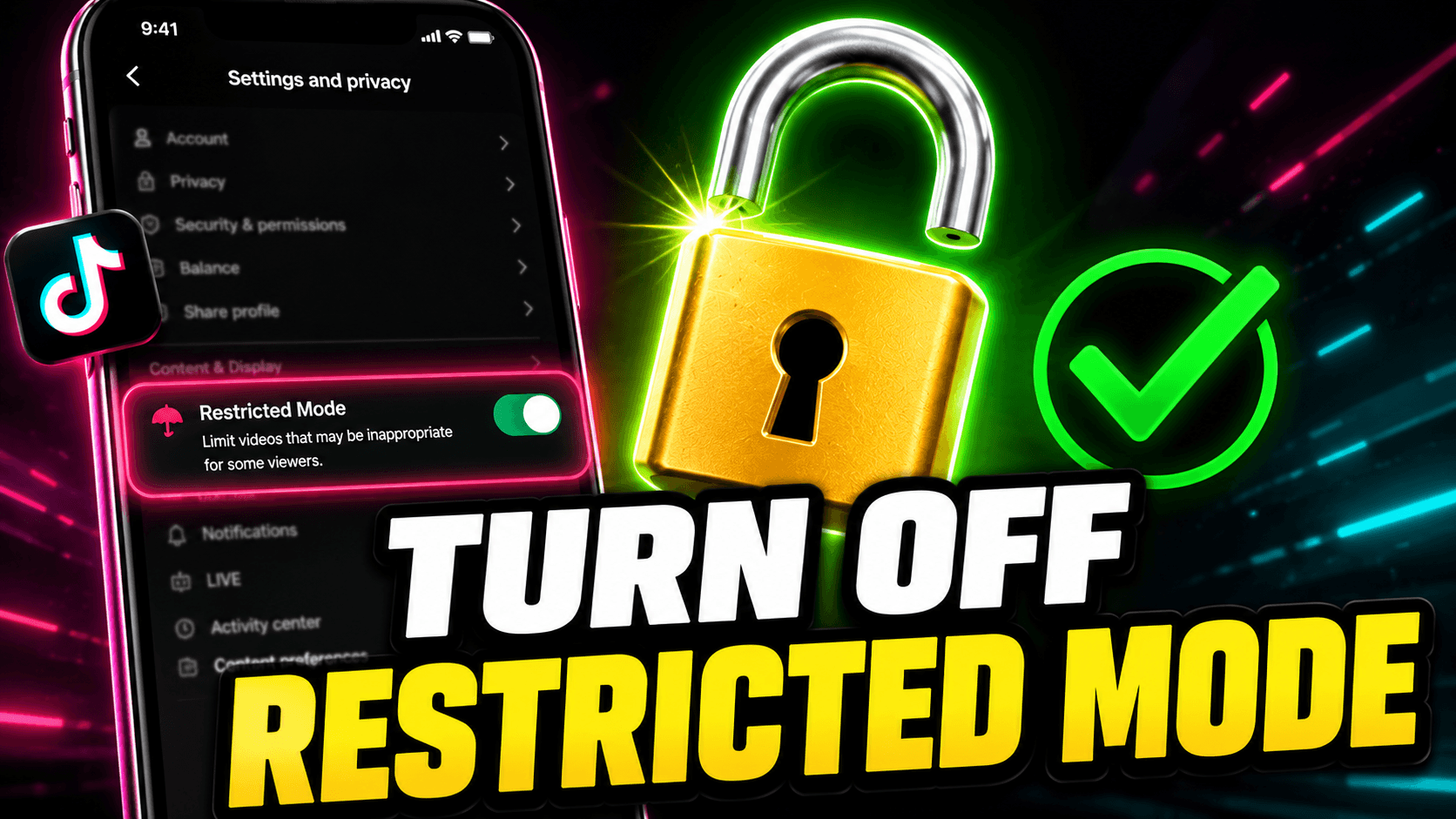
Go to your TikTok profile, tap the menu icon (☰), open Settings and Privacy → Content Preferences → Restricted Mode, and toggle it off. If it’s protected by a passcode, you’ll need to enter that first. The steps are the same on iPhone and Android, there is no difference between platforms here.
That covers most cases. The rest of this article is for the situations where it is not that simple: the toggle is greyed out, you don’t know the passcode, or restricted mode keeps switching itself back on.
What Restricted Mode Actually Does
Restricted mode filters content that the TikTok system flags as potentially mature, this includes some violence, suggestive content, themes, and content that discusses sensitive social topics. TikTok uses a combination of automated tagging and creator self-reporting to decide what gets filtered.
The catch is that the filter is not 100% accurate. It often catches perfectly normal content such as political commentary, mental health discussions, and comedy involving adult topics. This is the main reason users want it off: it is not blocking anything genuinely harmful, just making the For You Page feel weirdly sanitised.
Restricted mode was originally designed as a parental control tool. If you didn’t turn it on yourself, someone else likely did, or it was enabled by default on a device managed by a school, employer, or family sharing plan.
How to Turn Off Restricted Mode on TikTok
iPhone and Android (TikTok App)
The process is the same on both operating systems:
1. Open TikTok and tap Profile (your icon at the bottom right)
2. Tap the menu icon (☰) at the top right
3. Select Settings and Privacy
4. Tap Content Preferences
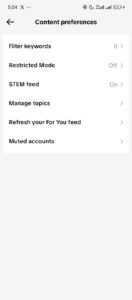
5. Tap Restricted Mode
6. Toggle it off
If no passcode is set, it disables immediately. If the toggle is locked, TikTok will prompt you for a 4-digit PIN before it lets you change anything.
Browser (TikTok.com on Desktop)
- Go to tiktok.com and log into your account
- Click your profile icon at the top right
- Select Settings
- Under Content, find Restricted Mode
- Toggle it off
The browser version has slightly less functionality than the app, but restricted mode settings sync across devices, so turning it off on desktop also turns it off on your phone when you next open the app.
Restricted Mode Is Greyed Out (What’s Happening)
A greyed-out toggle almost always means one of three things:
Screen Time / Digital Wellbeing is blocking it.
On iPhone, if Screen Time has content restrictions enabled, TikTok’s restricted mode gets locked at the system level. Go to iPhone Settings → Screen Time → Content & Privacy Restrictions → Apps and check whether TikTok has a rating restriction applied.
On Android, the equivalent is Digital Wellbeing → Parental Controls. Disabling the restriction there should un-grey the TikTok toggle.
A TikTok Family Pairing link is active.
If the account is linked to a parent account via TikTok’s Family Pairing feature, the parent account controls restricted mode remotely. You can’t change it from the child account, the parent has to log in to their account and update the settings from there.
The account is flagged as a minor.
TikTok requires users to be 13+ to use the platform and 16+ to access certain features. If your account’s registered birthdate puts you under 16, restricted mode may be enforced automatically and cannot be turned off without changing the account’s date of birth, which requires going through TikTok support.
Why Restricted Mode Keeps Turning Back On
If you’ve turned it off and it reactivates on its own, the cause is almost always external to TikTok:
Screen Time or Digital Wellbeing is re-enabling it after each session. Check if your device’s parental controls are set to enforce content restrictions on a schedule or at launch.
A Family Pairing parent account is toggling it back. The parent account gets a notification when restricted mode is changed and can re-enable it remotely.
You’re logging into a shared device where another account profile has restricted mode on. Switching accounts doesn’t always reset the view state cleanly.
A work or school MDM profile is enforcing content restrictions at the device management level. In this case, nothing inside TikTok or any app can override it.
Frequently Asked Questions (FAQs)
What does restricted mode do on TikTok?
Restricted mode filters content that TikTok’s system tags as potentially mature or sensitive. This includes some violent content, suggestive material, and topics like drug use. It was designed as a parental control. In practice, it also filters a significant amount of ordinary content like political speech and mental health content that isn’t actually harmful, which is why most users want it off.
Why is restricted mode greyed out on TikTok?
A greyed-out restricted mode toggle usually means an external control is locking it. On iPhone, Screen Time with content restrictions enabled will grey out the toggle. On Android, Digital Wellbeing parental controls do the same. TikTok’s Family Pairing feature also locks restricted mode — the parent account controls it remotely. Check those settings before troubleshooting anything inside TikTok itself.
How do I turn off restricted mode on TikTok without a password?
Tap Forgot Passcode on the Restricted Mode screen to receive a reset code via your account’s registered email or phone number. If that option doesn’t appear, update TikTok to the latest version — the reset feature was added in a 2023 update. If you can’t access the linked email or phone, contact TikTok support through Settings → Report a Problem.
Can a parent turn off restricted mode on their child’s TikTok?
Yes. If accounts are linked through TikTok’s Family Pairing feature, the parent account controls restricted mode. Open the TikTok app on the parent’s device, go to Settings and Privacy → Family Pairing, select the linked account, and adjust restricted mode from there. Changes apply to the child’s account immediately.
Does turning off restricted mode affect content recommendations?
Not directly. Turning off restricted mode removes the content filter, but your For You Page is still shaped by your watch history, likes, and interaction patterns. You may see more varied content initially, but the algorithm adapts quickly. Restricted mode doesn’t reset or affect your recommendation profile — it only adds or removes the filter layer on top of it.
Quick Reference
| Situation | Fix |
|---|---|
| Toggle is accessible, no passcode | Settings → Content Preferences → Restricted Mode → toggle off |
| Toggle is passcode-protected | Tap Forgot Passcode → verify via email or phone |
| Toggle is greyed out on iPhone | Check Screen Time → Content & Privacy Restrictions |
| Toggle is greyed out on Android | Check Digital Wellbeing → Parental Controls |
| Family Pairing is active | Parent account must change it via Family Pairing settings |
| Keeps turning back on | External MDM or parental control is re-enabling it — fix at device level |
| Account registered as under 16 | Restricted mode may be enforced by TikTok; contact support to resolve |
 Share this post