If you want to delete a YouTube channel, the process takes less than five minutes, but the decision is permanent. Once you delete it, your videos, comments, playlists, subscribers, and analytics disappear for good. There is no undo button. So before you go through the steps, it pays to understand exactly what gets removed, what stays, and what you should do first to protect your content and earnings.
This guide walks you through how to delete a YouTube channel on desktop and mobile, how to back up your data beforehand, and what your alternatives are if you are not ready to go all the way.
What Happens When You Delete a YouTube Channel?
Deleting a channel is not the same as taking a break. Here is exactly what you lose:
| What gets deleted | What stays |
|---|---|
| All videos and thumbnails | Your Google account (Gmail, Drive, etc.) |
| Playlists and watch history | Your AdSense account |
| Comments and replies | Other YouTube channels you own |
| Subscribers and subscriber count | Any purchases made on Google Play |
| Channel URL and custom name | |
| Community posts and analytics | |
| YouTube Premium / YouTube TV subscriptions |
Your Google account remains active. Deleting a YouTube channel only removes that channel, not your Gmail, Google Drive, or any other Google service.
One more thing worth knowing: any comments you left on other people’s videos will either be removed or show as coming from a deleted account, depending on timing.
Before You Delete: 4 Things to Do First
Skipping this part is the most common mistake people make.
1. Download your videos
Go to YouTube Studio, click Content, check all your videos, click More Actions, then Download. This saves your videos as MP4 files before they are gone.
2. Use Google Takeout for a full backup
- Head to takeout.google.com.
- Deselect everything, then select only YouTube.
- Choose your export settings and hit Create Export.
Depending on how much content you have, this can take a few hours to a few days. Start it early.
3. Check your AdSense balance
If your channel is monetised, log into AdSense and confirm your payment threshold and pending earnings. The standard payout threshold is $100. Earnings below that may be forfeited when the channel is deleted. Make sure payments clear first.
4. Confirm you are on the right channel
If you manage multiple channels, double-check which one is active before you proceed. Click your profile picture at the top right and select Switch Account to verify.
How to Delete a YouTube Channel on Desktop
YouTube’s official guidance confirms you can only permanently delete a channel from a desktop browser. The mobile app does not support full channel deletion.
Here are the steps:
- Go to studio.youtube.com and sign in.
- In the left sidebar, click the Settings gear icon.
- Select Channel, then click Advanced Settings.
- Scroll to the bottom and click Remove YouTube Content.
- You may be asked to re-enter your Google account password.
- On the next screen, select I want to permanently delete my content.
- Check all the confirmation boxes, these confirm you understand what is being removed.
- Click Delete my content.
- You may be asked to type your channel name or email as a final confirmation step.
- Click Delete my content one more time to finalise.
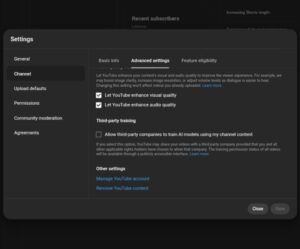
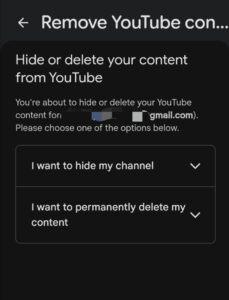
YouTube will confirm the deletion has been initiated. Full removal can take anywhere from a few minutes to a few days to complete across all of YouTube’s systems. You may still see video thumbnails briefly after deletion, this is normal.
How to Delete a YouTube Channel on Mobile (iPhone & Android)
You cannot fully delete a YouTube channel from the mobile app using the standard in-app flow. However, you can do it through a browser on your phone by going to the desktop version of YouTube Studio.
Here is the workaround:
- Open a browser on your phone (not the YouTube app).
- Go to studio.youtube.com.
- If the site loads the mobile version, request the desktop site from your browser menu.
- Follow the same desktop steps listed above from Step 2 onward.
Alternatively, you can use your phone to access your Google Account settings:
- Open the YouTube app and tap your profile picture.
- Tap Manage your Google Account.
- Go to Data & Privacy.
- Tap Delete a Google service.
- Verify your identity if prompted.
- Find YouTube in the list and tap the trash icon.
- Select I want to permanently delete my content.
- Check the confirmation boxes, then tap Delete my content.
Note: This Google Account route removes your YouTube channel as a Google service and produces the same permanent result.
Delete vs. Hide: What Is the Difference?
Before you commit, know that you have a less drastic option.
Hiding your channel makes it invisible to other users without deleting anything permanently. Your videos, playlists, and subscriber count go private. You can restore your channel at any time by simply re-enabling it in YouTube Studio.
The catch: when you hide a channel, your comments on other people’s videos are permanently deleted. They do not come back when you re-enable the channel.
Deleting your channel removes everything permanently with no recovery option.
Here is a quick comparison:
| Hide Channel | Delete Channel | |
| Videos removed? | No (made private) | Yes (permanently) |
| Subscribers removed? | Temporarily hidden | Permanently gone |
| Recoverable? | Yes | No |
| Comments on other videos? | Permanently deleted | Permanently deleted |
| Channel URL reusable? | Yes, when restored | No, gone forever |
If you are not 100% certain, hide the channel first. Give it a few weeks. If you still want it gone, come back and delete.
Also check out this guide on how to change your YouTube channel name.
What Happens to Your Custom URL After Deletion?
Once you delete a channel with a custom URL (for example, youtube.com/@yourchannel), that URL is gone. It cannot be reclaimed, transferred, or used again, not even by you for a new channel. Anyone who tries to visit the old URL gets a page-not-found error.
How to Delete a Brand Account YouTube Channel
If your channel is linked to a Google Brand Account rather than a personal Google account, the deletion process is the same. Go to YouTube Studio > Settings > Channel > Advanced Settings > Remove YouTube Content.
Deleting the channel removes only the YouTube service from the Brand Account. The Brand Account itself stays active. If you want to delete the Brand Account entirely, that is a separate step done through your Google Account settings.
Can You Recover a Deleted YouTube Channel?
In most cases, no. Once you confirm deletion, the content is gone. YouTube does not offer a standard recovery option.
In rare situations, you may be able to contact YouTube Support immediately after deletion and request a review, but there is no guarantee of recovery, and this window is very short. Do not rely on it as a safety net.
This is why backing up your videos through Google Takeout before deleting is so important.
Alternatives to Deleting Your Channel
Not sure deletion is the right move? Here are four options that stop short of a permanent decision:
1. Make all videos private
Go to YouTube Studio > Content > select all videos > Edit > Visibility > Private. Your channel stays up, but no one can see your videos.
2. Hide the channel
As covered above, takes the channel off public view without removing anything. Fully reversible.
3. Delete individual videos
You do not have to delete the whole channel to remove specific content. In YouTube Studio, select the videos you want to remove and delete them one by one.
4. Transfer channel ownership
If the channel has value but you no longer want to run it, you can add a manager or transfer it to a Brand Account and pass ownership to someone else. Note there is typically a 7-day waiting period involved in ownership transfers.
Frequently Asked Questions (FAQs)
Does deleting a YouTube channel delete my Google account?
No. Your Google account stays active. Only the YouTube channel and its content are removed. Gmail, Google Drive, and all other Google services are unaffected.
Can I delete a YouTube channel from my phone?
Not through the standard YouTube app. You need to use a desktop browser or access YouTube Studio via a mobile browser with desktop mode enabled.
What happens to my subscribers when I delete my channel?
They lose access to your channel and videos. Your channel disappears from their subscription feed. They do not receive a notification that you deleted the channel.
Will my comments on other videos be deleted?
Comments you made on other people’s videos may be removed or appear as coming from a “Deleted user.” This is not always immediate, some may persist briefly depending on YouTube’s system timing.
How long does YouTube channel deletion take?
The deletion process initiates immediately after you confirm. Full removal from YouTube’s systems typically takes a few minutes to a few days. You may see video thumbnails linger briefly after deletion.
Can I create a new channel with the same name after deleting?
You can create a new channel with the same name, but you cannot recover the old content, subscribers, or analytics. The old custom URL is also gone permanently and cannot be reused.
What happens to my YouTube Premium if I delete my channel?
Any paid subscriptions linked to the channel, including YouTube Premium and YouTube TV, are cancelled immediately when you delete the channel.
Conclusion
Deleting a YouTube channel is straightforward, but it is a one-way door. Back up your videos using Google Takeout, check your AdSense balance, confirm you are on the right channel, and then follow the steps through YouTube Studio on desktop.
If you have any doubt, hide your channel first. It gives you the same break without losing everything permanently. But if you are ready to move on, the steps above will get it done in under five minutes.
 Share this post