If you want to download your Instagram data, you can do it directly through the app or a browser, no third-party tools needed. Instagram lets you request a full copy of everything tied to your account: photos, videos, Reels, Stories, direct messages, comments, followers, following lists, ads data, and more.
The process is free, takes a few minutes to set up, and Instagram emails you a download link once the file is ready. That can take anywhere from a few minutes to a few days, depending on how much data your account holds.
Data backup is important especially before you delete your account, or switch phones. In this guide, you will learn how to download your Instagram data on mobile and desktop, and also how to open and read it once you have it.
What is Included in Your Instagram Data Download?
Instagram packages your data into categories. Here’s what you get:
| Category | What’s Included |
|---|---|
| Photos & Videos | All posts, Stories, Reels you’ve shared |
| Messages | All DMs — text, photos, videos, voice notes |
| Comments | Every comment you’ve left on any post |
| Profile info | Bio, username history, profile photo |
| Followers & Following | Full lists of both |
| Likes | Posts and comments you’ve liked |
| Search history | Every account and hashtag you’ve searched |
| Ads | Ads you’ve seen and ads you’ve interacted with |
| Login activity | Devices and locations used to log in |
| Story interactions | Polls, questions, reactions |
You can download everything in one go, or select specific categories.
How to Download Your Instagram Data on Mobile (iPhone & Android)
The steps are the same on both iOS and Android.
1. Open the Instagram app and go to your profile.
2. Tap the three horizontal lines in the top right corner.
3. Tap Accounts Center.
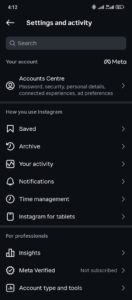
4. Scroll down and tap Your information and permissions.
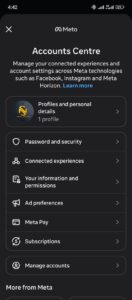
5. Tap Export your Information.
6. Once the page loads, click Create Export.

6. Next choose where to export your information.

7. From the Confirm your export screen, you can choose which information you want to export. All are selected by default.
8. Choose your date range (or leave it as “All time”).
9. Select your format: HTML (easier to read) or JSON (for developers/data tools).
10. Choose your media quality: High, Medium, or Low.
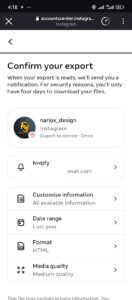
12. Tap Start Export. You will be prompted to confirm your password.
Instagram will start working on your request and you will be be notified when the data is ready.
How to Download Your Instagram Data on Desktop
1. Go to instagram.com and log in.
2. Click on the three horizontal lines in the bottom left corner.
3. Click Settings.
4. Click Accounts Center in the left-hand menu.
5. Click Your information and permissions.
5. Tap Export your Information.
6. Once the page loads, click Create Export.
6. Next choose where to export your information.
6.
7. Choose All of your information or specific categories.
8. Set your date range and format (HTML or JSON).
9. Select media quality.
10. Click Start Export.
You will get an email confirming your request. Your data will be exported to your preferred location.
HTML vs JSON: Which Format Should You Choose?
When you request your data, Instagram asks you to pick a format.
HTML
- Opens in any web browser
- Looks clean and organized
- Best if you just want to read your data
- Photos and videos are viewable directly
JSON
- Machine-readable format
- Best for developers or anyone who wants to analyze data programmatically
- Harder to read without a tool
- Useful if you are migrating data to another platform
For most people, HTML is the right choice. If you are not sure what JSON is, pick HTML.
How Long Does It Take to Download Instagram Data?
Instagram says it can take up to 14 days, but in practice:
- Small accounts (a few years, moderate activity): a few hours
- Large accounts (heavy posting, lots of DMs): 1–3 days
- Very old accounts with years of content: up to a week
You will receive an email when your file is ready. Instagram also notifies you inside the app under Download your information → Download requests.
If you have not received anything after 48 hours, check your spam folder. If the email isn’t there, resubmit the request.
How to Download Your Instagram Data Without Email Access
Depending on the export option you select you do not need to receive a download link via email. You can choose to export data to platforms like Dropbox, Google drive, Google photos etc. Best part is you can choose how often you want your data to automatically export.
Here’s what to do first:
1. While creating your export, choose an external service.
2. Follow the instructions on the screen to connect the service to Instagram.
If you cannot log into your account at all, you need to recover account access first through Instagram’s account recovery tools before requesting any data.
How to Open and Read Your Instagram Data File
Once you download the ZIP file, here’s how to access it:
On desktop
1. Find the ZIP file in your Downloads folder.
2. Double-click to unzip it (or right-click → Extract All on Windows).
3. Open the unzipped folder.
4. If you chose HTML: open `index.html` in a browser.
5. If you chose JSON: open individual `.json` files in a text editor or JSON viewer.
On mobile
1. Open your Files app (iPhone) or Downloads folder (Android).
2. Tap the ZIP file to extract it.
3. Open the extracted folder.
4. Tap `index.html` to open it in your browser, or open JSON files with a compatible app.
The HTML version has a sidebar menu that lets you jump to different sections like messages, posts, comments, etc. It is the most user-friendly way to review everything.
How to Download Instagram Photos Specifically
If you only want your photos and videos (not your full data file), you can filter the download request.
When you get to the category selection step:
1. Choose Some of your information.
2. Select Posts, Stories, Reels, and Archived posts, whatever applies.
3. Deselect everything else.
4. Submit the request.
This produces a smaller file and a faster turnaround. Your photos will be in the `/photos` folder inside the ZIP file.
How to Download Instagram DMs (Direct Messages)
Your DMs are included in the full data download. To get just your messages:
1. Follow the same request process.
2. At the category step, choose Some of your information.
3. Select Messages only.
4. Submit.
Inside the downloaded file, you’ll find a `/messages` folder. Each conversation has its own folder named after the other person. Text messages appear as `.json` or `.html` files, and any photos or videos shared in the chat are saved as separate media files in the same folder.
One thing to know: Instagram only stores the messages that still exist on the platform. If you or the other person deleted messages, they won’t appear in your download.
Can You Download Another Person’s Instagram Data?
No. Instagram only lets you download data linked to your own account. You need to be logged in as that account to make a request.
If you are trying to recover data from a deceased family member’s account, Instagram has a Special Request process for memorialization or removal, but they do not provide data downloads to third parties.
How to Download Instagram Data for a Business or Creator Account
The process is exactly the same for business accounts, creator accounts, and personal accounts. Instagram doesn’t differentiate.
Business accounts may have additional data in categories like:
- Ads and businesses (if you’ve run ads)
- Shopping (if you’ve had a shop)
- Branded content settings
These categories appear automatically in your download if they apply to your account.
Why You Should Download Your Instagram Data Before Deleting Your Account
Once you delete your Instagram account and the 30-day grace period passes, your data is gone. Instagram does not offer recovery after that point.
Download your data first if you want to keep:
- Your photos and videos (especially old ones you haven’t saved elsewhere)
- Your DMs and conversations
- Your followers list (useful if you’re moving to another platform)
- Your archive of Stories
If you are planning to delete your account, do this first. Then follow this guide to delete or deactivate your Instagram account.
FAQs
How do I download all my Instagram photos at once?
Submit a data download request through Settings → Accounts Center → Your information and permissions. Select “Posts” under the category options. Instagram will package all your photos into a ZIP file and send you a download link by email.
Can I download Instagram data from a deactivated account?
Yes. You can log back into a deactivated account and submit a data request. Your data is still stored on Instagram’s servers during the deactivation period.
Does downloading Instagram data delete it from the platform?
No. Downloading your data has no effect on your account or your content. Everything stays on Instagram exactly as it was.
Can I download Instagram data multiple times?
Yes. You can submit as many download requests as you want. Each request generates a new file reflecting your account at that point in time.
Why didn’t I receive my Instagram data download email?
Check your spam or junk folder first. If it’s not there, confirm the email address on your Instagram account is correct, and resubmit the request. Some email providers block automated Instagram emails.
How long does Instagram keep my data after I submit a request?
The download link stays active for four days. If you miss that window, resubmit the request.
Is it safe to download my Instagram data?
Yes. You are downloading directly from Instagram’s servers to your own device. No third-party apps are involved, and Instagram authenticates you before generating the file.
Conclusion
Downloading your Instagram data takes about five minutes to request, and the file lands in your inbox within hours for most accounts. In this guide, we have provided all the information you will need before and after downloading your data from Instagram.
In summary, here is a quick step. Go through Accounts Center→ Your information and permissions, pick your format, choose your categories, and submit. Save the ZIP file somewhere safe once you get it.
 Share this post