Knowing how to change name on TikTok is something every content creator and business owner needs to know. Your profile name is the first thing users sees when they come across your profile.
Whether you made a typo during signup or are rebranding entirely, updating your TikTok handle and display name is a simple process that can have a huge impact on your account’s visibility.
You might be surprised to learn that TikTok actually has two different “names” for every account, and they serve very different purposes.
This guide breaks down exactly how to change both your username and your nickname, explains the strict rules you need to follow, and offers the best advice on picking a name that helps you grow.
We will walk through the steps for both mobile and desktop users, so you can get your profile updated and get back to creating content.
The Two Types of TikTok Names
Before you start editing, you need to understand that there are different names for your TikTok profile. There is your Username and also your Nickname (often called your Display Name).
Confusing these two is a common mistake, but they function differently on TikTok.
1. The Username (@Handle)
Your username is your unique identifier. It is the name that appears after the “@” symbol on your profile and in video captions.
- It must be 100% unique. No two accounts can share the same username.
- It appears in your profile URL (e.g., tiktok.com/@yourusername).
- You can only use letters, numbers, underscores, and periods. You cannot put a period at the end.
- Changing this breaks your old profile link.
Use our TikTok Name generator tool to generate your username. Also use the TikTok Name Availability Tool to check if your chosen username is available or taken.
2. The Nickname (Display Name)
Your nickname is the text that appears at the very top of your profile, usually in bold.
This does not need to be unique. You can use your real name, a business name, or a phrase.
This is what users see in their Direct Messages (DMs) and notifications when you comment on their videos.
You can use emojis, spaces, and special characters here.
Understanding this difference helps you plan your rebrand. Your username is for finding you; your nickname is for identifying you.
How to Change Name on TikTok (Mobile App)
Most creators manage their accounts directly from their phones. The process to change a name on TikTok is straightforward on both iOS and Android devices.
Steps to Change Your Username (@Handle)
1. Open the app. Launch TikTok and ensure you are logged into the correct account.
2. Go to Profile. Tap the Profile icon located in the bottom right corner of the screen.
3. Edit Profile. Tap the big Edit Profile button situated just below your profile picture.

4. Select Username. Tap on the line that says Username.
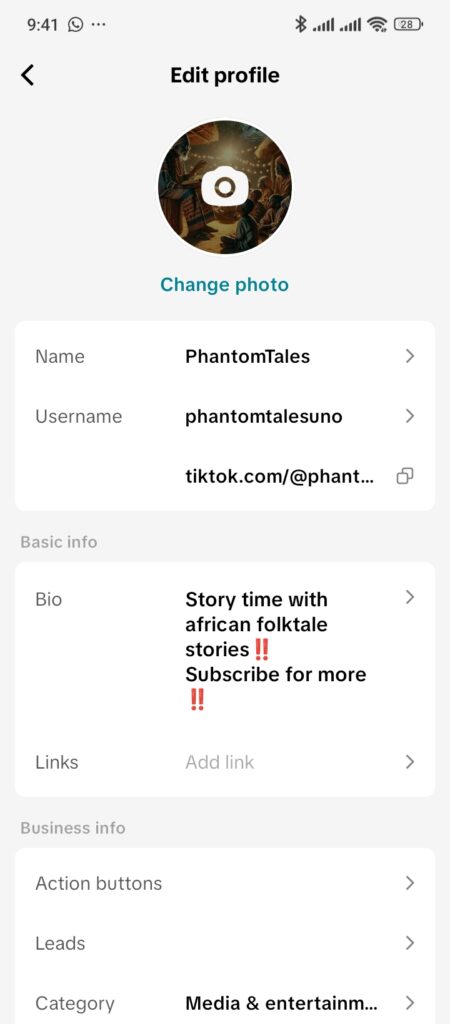
5. Input New Handle. Delete your old handle and type in your new one.
Note: If the name is taken, a red warning will appear. If it is available, you will see a green checkmark.
6. Save. Tap Save in the top right corner.
7. Confirm. A pop-up will remind you that you cannot change it again for 30 days. Tap Set username to confirm.
Steps to Change Your Nickname (Display Name)
The steps to change your display name are quite similar to the steps we followed above.
- Navigate to Edit Profile. Go back to your Profile tab and tap Edit Profile.
- Select Name. Tap on the section labeled Name (this is usually above the Username option).
- Enter New Name. Type your desired display name.
- Tip: You can use spaces and emojis here to add personality.
- Save. Tap Save in the top right corner.
How to Change Name on TikTok (Desktop/PC)
If you prefer working from a computer, you can also update your profile details via a web browser.
Steps for Web Browser
- Go to tiktok.com and log in to your account.
- Access Profile. Hover over your profile picture in the top right corner of the screen.
- Select View Profile from the dropdown menu.
- Edit Profile. Click the Edit Profile button next to your user info.
- To change your Nickname, click on the Name field and type your new choice.
- To change your Username, click the Username field.
- Click the Save button to apply changes immediately.
Important Name Change Rules and Restrictions
TikTok has strict policies to prevent spam and confusion. Before you commit to a new name, you must be aware of the “cooling-off” periods.
| Feature | Restriction | Reset Period | Character Limit |
|---|---|---|---|
| Username | Unique, no spaces, no emojis | 30 Days | 24 Characters |
| Nickname | Non-unique, allows spaces/emojis | 7 Days | 30 Characters |
The 30-Day Username Lock
Once you change your username, you are locked into that choice for exactly 30 days. There is no “undo” button. If you make a typo (e.g., @bestcoffe instead of @bestcoffee), you are stuck with that typo for a month.
This rule exists to prevent bots from churning through usernames and to maintain platform stability.
The 7-Day Nickname Lock
The display name is more flexible. You only have to wait 7 days between changes. This allows you to update your name for holidays (e.g., “Sarah 🎃 Spooky Mode”) without a long-term commitment.
Link Rot Warning
When you change your Username, your profile URL changes.
- Old Link: tiktok.com/@oldname (This will now lead to a 404 error page).
- New Link: tiktok.com/@newname.
You must immediately update your bio link on Instagram, YouTube, your website, and your email signature. If you forget this step, you will lose traffic.
The “Date and Time” Glitch
Some older tutorials suggest that changing your phone’s date settings to 30 days in the future will trick the TikTok app.
Does it work? Generally, no. TikTok has patched this in recent updates (late 2024/2025). The app validates the date against its own servers, not just your phone’s internal clock.
Messing with your phone’s date and time can break other apps (like alarms, calendars, and emails) and may flag your account for suspicious activity.
The “Report a Problem” Method
This is the only legitimate way to attempt a change before 30 days, though success is rare.
- Go to Settings and privacy.
- Scroll to Report a problem.
- Select Account and profile > Editing profile.
- Choose Unable to change username.
- Tap Need more help? and write a polite message explaining that you made a typo legally affecting your brand.
Note: Support is unlikely to grant this request unless you have a verified account or a trademark issue, but it is safer than the date glitch.
Best Strategy for Choosing the Right Name
Learning how to change name on tiktok is the technical part; knowing what to change it to is the strategic part. TikTok is a search engine. Your username and nickname help categorize your content.
1. Include Keywords in Your Nickname
Your nickname (Display Name) is searchable. If you are a fitness coach named John, don’t just use “John Smith.” Use “John | Keto Fitness Coach.”
Why? When users search “Keto” or “Fitness Coach,” your profile is more likely to appear in the “Users” tab.
Format: [Name] | [Niche/Skill]
2. Keep the Username Clean
Your username should be easy to say out loud. If you have to explain it (“It’s John underscore number four real…”), you have lost the audience.
Avoid: Excessive numbers (e.g., user9823423).
Avoid: Confusing spellings (e.g., kewlcats).
Preferred: Consistent branding across all platforms. If you are @BakeryBites on Instagram, try to get @BakeryBites on TikTok.
3. Leverage Formatting
Use your nickname to make your profile pop.
Adding a relevant emoji (🏋️, 🎨, ✈️) to your nickname can catch the eye.
TikTok usernames are not case-sensitive functionally, but they display capitalization. @SocialMediaPro is easier to read than @socialmediapro.
Troubleshooting Common Issues
Sometimes the process doesn’t go smoothly. Here are the most frequent errors users encounter when trying to change their TikTok name.
“This username is not available”
This means another account currently holds that handle.
Fix: Try adding a modifier like “Official,” “Real,” or a location code (e.g., NYC). Or use our name generator.
Note: Inactive accounts still hold their usernames. You cannot “claim” a username from an inactive user unless you own the trademark and file a legal request.
“You are changing your username too frequently”
This error confirms you are within the 30-day lockout period.
Fix: Check the date of your last change. Set a calendar reminder for the exact day the ban lifts.
“Contains restricted words”
TikTok bans usernames containing hate speech, explicit terms, or words that imply you are an employee of TikTok (like “Admin” or “Staff”).
Fix: Review the Community Guidelines and remove any controversial terms.
“Unable to save changes”
This is often a connection or cache issue.
Fix: Clear your app cache. Go to Settings and privacy > Free up space > Clear Cache. Then restart the app and try again.
Frequently Asked Questions (FAQ)
Does changing my username verify me?
No. In fact, if you already have a verified badge (the blue checkmark), changing your username might cause you to lose your verification. You should contact TikTok support before rebranding a verified account.
Can I use my old username again?
If you change your username, the old one becomes available for the public to grab after a short “cooling-off” period. If no one takes it, you can switch back after 30 days. However, if “squatters” or bots grab it, it is gone forever.
Will I lose my followers if I change my name?
No, you will not lose followers, likes, or videos. Your existing followers will simply see your new name on their feed.
However, they might be confused if the name change is drastic, so it is smart to post a video announcing the rebrand.
Can I change my TikTok name without logging in?
No. You must be logged into the account to make security changes. If you lost access, you must recover the account via email or phone number first.
Is there a fee to change my TikTok name?
No, changing your name on TikTok is 100% free. Be wary of third-party services asking for money to “reserve” or “change” names for you; these are almost always scams.
Conclusion
Now you know how to change your username and display name on Tiktok.
Here is a summary
You can change your name by going to the profile section on your account and updating the name or username fields.
You can change your username once every 30 days.
You can change your display name once every 7 days.
 Share this post