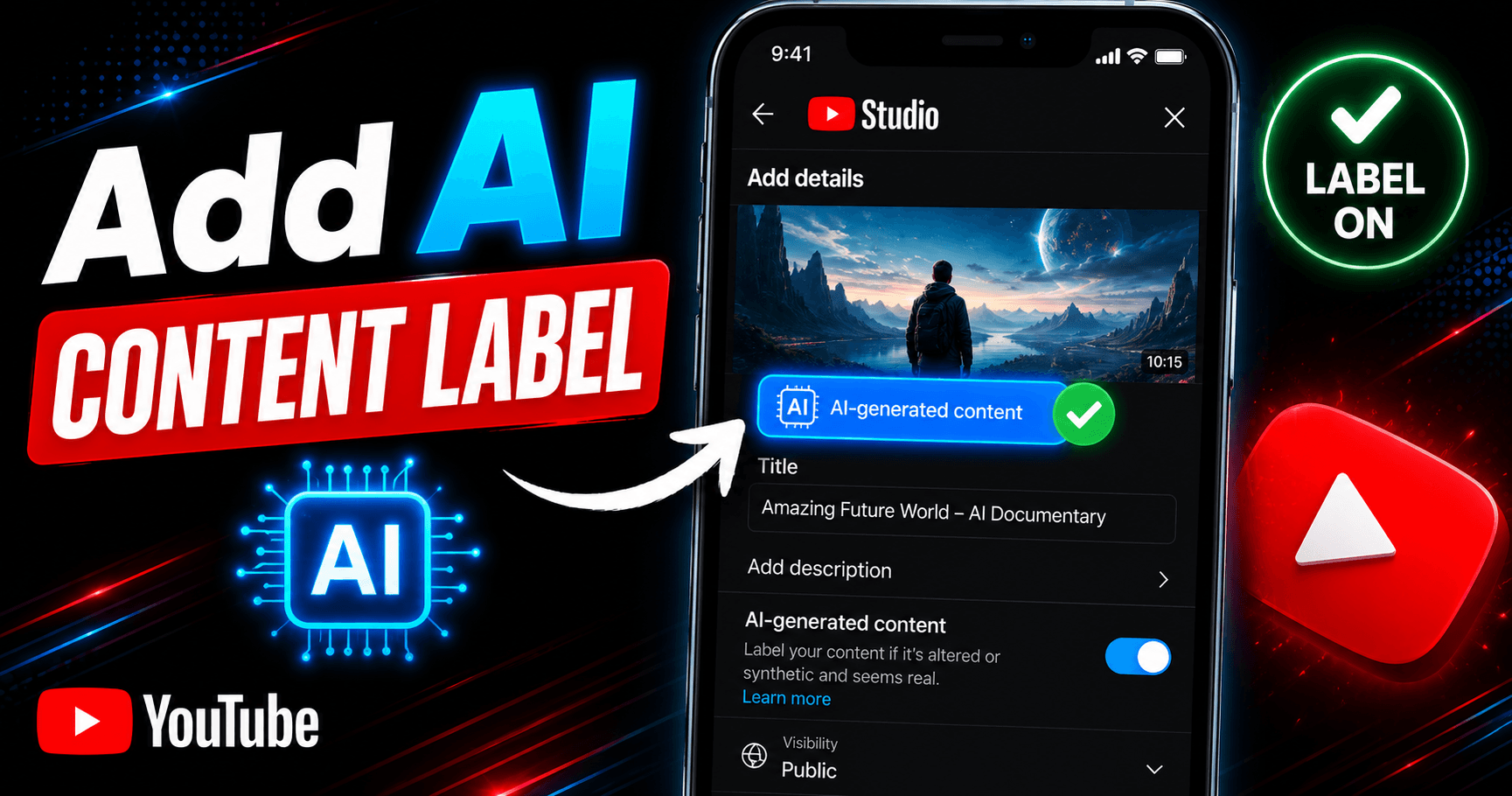
You add an AI content label in YouTube Studio by toggling “Yes” under AI use in the Attributes section during upload or by editing an existing video’s details and doing the same. Once you select Yes, YouTube automatically applies the disclosure label to the video for viewers, you don’t design or place it yourself.
That’s the short version. The part that trips creators up isn’t the toggle. It’s knowing when you’re required to flip it and what YouTube’s newer automatic detection means for anyone who skips this step.
When You Actually Need to Disclose AI Use
YouTube doesn’t require a label every time AI touches your workflow. The bar is realism and meaningful alteration, not AI involvement in general.
You don’t need to disclose:
- Using AI to write scripts, titles, thumbnails, or outlines
- Auto-generated captions
- Beauty filters, color grading, or background blur
- Voice cloning of your own voice for dubs or voiceovers
- Clearly unrealistic content, like animated scenes or someone riding a unicorn
You do need to disclose:
- Making a real person appear to say or do something they didn’t
- Altering footage of a real event or location
- Generating a realistic scene that never happened, a tornado bearing down on a real city, for example, or AI-added footage of a real place like a beach in Maui
- Synthetic voice or likeness used to depict a real person
The dividing line is whether a viewer could reasonably be misled about what actually happened. Editing your thumbnail with an AI tool doesn’t clear that bar. Faking a video of a real athlete winning a match that never occurred does.
Step-by-Step: Adding the Label
For a new upload:
1. Go to YouTube Studio and start the upload process.
2. When you reach the Attributes section, find “AI use.”
3. Select Yes if the content meets the disclosure criteria above, or No if it doesn’t.
4. Continue through the rest of the upload flow as normal.
For a video you’ve already published:
1. Open the video’s details in your Content tab.
2. Scroll to Attributes and update the AI use setting.
3. Save. YouTube applies the label automatically, there’s no separate label editor.
That’s the entire process. There’s no artwork to upload, no text to write. You’re answering a disclosure question, and YouTube handles the display.
Where the Label Shows Up
As of YouTube’s May 2026 update, the label moved out of the expanded description and onto the main video surface for content YouTube considers photorealistic or meaningfully altered:
- Long-form videos: the label now sits directly below the video player, above the description.
- Shorts: the label appears as an overlay on the video itself.
Content that’s AI-generated but non-photorealistic or animated still gets a label, but it stays in the expanded description rather than the prominent player position.
YouTube’s Automatic AI Detection
This is the part that’s changed the calculus for a lot of creators. Starting in May 2026, YouTube began using internal detection systems to flag substantial photorealistic AI content that wasn’t disclosed at upload. If the system determines a video was significantly AI-generated and you didn’t disclose it, YouTube applies the label for you, without asking.
You can contest a label you think was applied in error by going back to the AI use setting in Attributes and switching it to No. That works in most cases. It doesn’t work for everything, though. Three categories of label are permanent and can’t be reversed:
- Content made with YouTube’s own generative tools, like Veo or Dream Screen
- Content carrying C2PA metadata (an industry standard that flags fully generative production)
- Labels applied after a manual review by YouTube
What Happens If You Don’t Disclose
Skipping disclosure on content that qualifies isn’t a gray area YouTube tends to overlook. Creators who consistently avoid disclosing eligible content risk YouTube manually applying the label anyway, along with penalties that scale up to content removal or suspension from the YouTube Partner Program.
The practical reality: with automatic detection now running in the background, “hoping it doesn’t get noticed” is a weaker strategy than it used to be. If the content is photorealistic and significantly AI-altered, YouTube’s systems are increasingly likely to catch it whether you disclose it or not, the only variable you control is whether you’re the one who flagged it first.
Does an AI Label Affect Monetization?
No. YouTube is explicit on this point: disclosing AI content doesn’t limit a video’s audience and doesn’t affect its eligibility to earn money. A properly labeled video is treated the same as any other for distribution and monetization purposes. The risk isn’t in labeling, it’s in not labeling content that requires it, which is a Community Guidelines and Partner Program issue, not a monetization penalty triggered by the label itself.
Also read how to find the best name for your YouTube channel.
Frequently Asked Questions (FAQs)
How do I add an AI label to my YouTube video?
Toggle “Yes” under AI use in the Attributes section, either during upload or by editing an existing video’s details in YouTube Studio. YouTube applies the visible label automatically once you select Yes.
Do I have to disclose AI-generated content on YouTube?
Only when the content is realistic and either fully or meaningfully generated or altered by AI, think fake footage of real people or places. Using AI for scripts, thumbnails, or captions doesn’t require disclosure.
What happens if I don’t disclose AI content on YouTube?
YouTube can apply the label itself using automatic detection or manual review, and repeated non-disclosure can lead to penalties, including content removal or suspension from the Partner Program.
Does an AI label hurt monetization on YouTube?
No. YouTube states directly that a disclosure label doesn’t limit a video’s reach or its eligibility to earn revenue.
Can I change or remove an AI label after uploading?
In most cases, yes, go back to the AI use setting in Attributes and switch it. Labels tied to YouTube’s own AI tools, C2PA metadata, or manual review are permanent and can’t be adjusted.
 Share this post