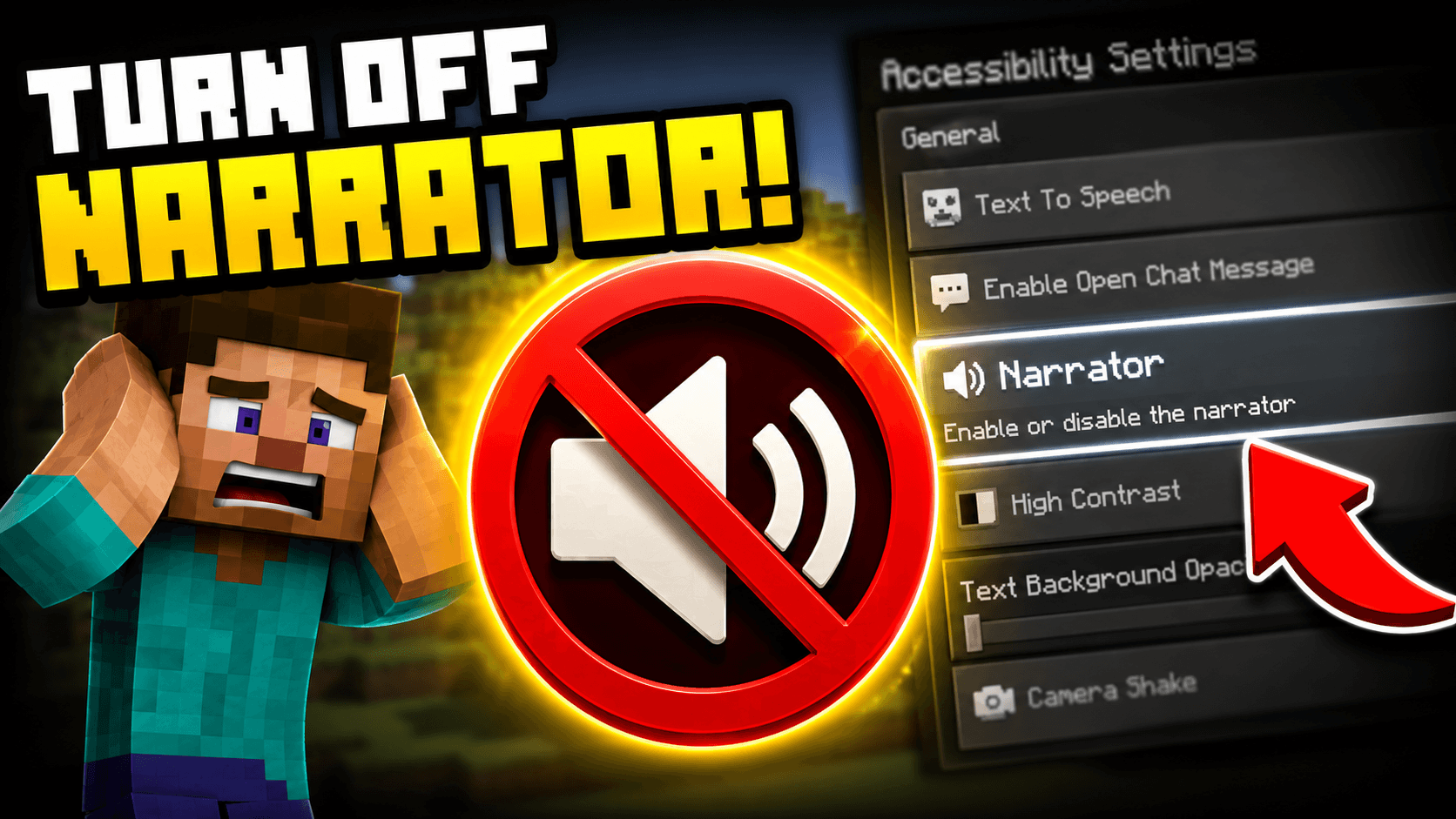
Press Ctrl + B on PC to toggle the Minecraft narrator off immediately. If you are on console, go to Settings, then Accessibility, and then Text to Speech and disable it there. The narrator turns on when you unknownly press a keyboard shortcut, and most players have no idea where the toggle is.
Here is how to shut it off on every platform.
Why the Narrator Turns On in the First Place
The Minecraft narrator is an accessibility feature that reads menus and chat messages aloud. It is useful for players with visual impairments, but for everyone else it tends to activate without warning and immediately become the most jarring thing happening in the game.
On Java Edition, the narrator is tied to a keyboard shortcut “Ctrl + B” that can easily be hit by accident. Press it once, it turns on. Press it again, it turns off. That’s the whole thing for most PC players.
On Bedrock (Windows, console, mobile), there is no accidental shortcut, but players sometimes find the narrator switched on after a system update that resets accessibility defaults or after another person used the device and changed settings.
How to Turn Off Narrator by Platform
Java Edition (PC/Mac)
Keyboard shortcut (fastest method):
Press Ctrl + B (Windows) or Cmd + B (Mac). The narrator cycles through four states: Off, All, Chat, and Menus. Keep pressing until you hit Off, or wait for it to announce the current mode — it’ll say “Narrator: [mode]” out loud as you cycle.
Via settings (if the shortcut doesn’t work):
1. Open Minecraft and go to Options
2. Select Chat Settings
3. Find Narrator and set it to Off
The keyboard shortcut is the faster move and works even while you’re in a world, so you don’t need to pause or open any menu.
Bedrock Edition (Windows 10/11)
1. Launch Minecraft and open Settings (gear icon on the home screen)
2. Go to Accessibility
3. Find Text to Speech for UI and toggle it off
You can also reach this mid-game via the pause menu > Settings > Accessibility.
Xbox (Series X/S and Xbox One)
1. From the Minecraft home screen, open Settings
2. Scroll to Accessibility
3. Turn off Text to Speech for UI
One thing worth knowing: Xbox also has a system-level narrator called Narrator in the Xbox Accessibility settings (separate from the Microsoft Ease of Access settings). If disabling it inside Minecraft doesn’t stop the voice, check Xbox Settings → Accessibility → Narrator and turn it off at the system level too. The two can stack.
PlayStation (PS4 / PS5)
1. Open Minecraft and go to Settings
2. Select Accessibility
3. Disable Text to Speech
PS5 also has a system screen reader under Settings → Accessibility → Screen Reader. If the in-game toggle doesn’t silence everything, that’s where to check next.
Nintendo Switch
1. From the main menu, open Settings
2. Go to Accessibility
3. Toggle Text to Speech for UI to off
Nintendo Switch doesn’t have a system narrator in the same way Xbox does, so the in-game toggle is almost always sufficient.
Mobile (iOS and Android)
1. Tap the Settings icon (the cogwheel) on the Minecraft home screen
2. Tap Accessibility
3. Turn off Text to Speech
On mobile you also want to make sure your phone’s native screen reader isn’t interfering. On iOS, that’s Settings → Accessibility → VoiceOver. On Android, it’s Settings → Accessibility → TalkBack. Either of those being active will cause a voice to read screen elements regardless of Minecraft’s own setting.
What If the Narrator Keeps Coming Back?
If you’ve turned off the narrator and it switches itself back on, there are a few likely culprits:
Shared device or account — someone else using the same profile or device may be turning it back on, either intentionally or accidentally via the Ctrl + B shortcut.
Cloud sync overwriting local settings — on Bedrock with a Microsoft account, settings can sync across devices. If another device has the narrator on, syncing can re-enable it. Fix this by disabling the narrator on every device you play on.
System-level accessibility setting — on Xbox and PlayStation, the console’s own screen reader can override the in-game setting. Check your console’s accessibility menu, not just Minecraft’s.
Controller input binding — rare, but if you’ve remapped controls, a button combination might be toggling it unintentionally. Check your controller settings under Options → Controls.
Frequently Asked Questions (FAQs)
How do I turn off the narrator in Minecraft Java Edition?
Press Ctrl + B on Windows or Cmd + B on Mac. This toggles the narrator through four modes: Off, All, Chat, and Menus. Keep pressing until you reach Off, or go to Options → Chat Settings → Narrator and set it manually.
Why does my Minecraft narrator keep turning on?
The most common cause on Java is accidentally pressing Ctrl + B. On Bedrock and consoles, settings sync across devices or a system-level screen reader may be overriding the in-game setting. Check both the in-game Accessibility settings and your console or device’s system accessibility menu.
How do I turn off narrator in Minecraft on Xbox?
Go to Settings → Accessibility → Text to Speech for UI and disable it inside Minecraft. If the voice continues, check Xbox Settings → Accessibility → Narrator at the system level — both need to be off in some cases.
How do I turn off narrator in Minecraft on PS4 or PS5?
Open Settings → Accessibility inside Minecraft and disable Text to Speech. On PS5, also check System Settings → Accessibility → Screen Reader if the in-game toggle alone doesn’t stop it.
Can you turn off the narrator in Minecraft Pocket Edition?
Yes. Tap the Settings cogwheel on the home screen, then go to Accessibility and turn off Text to Speech. If your phone’s native screen reader (VoiceOver on iOS, TalkBack on Android) is active, disable that too.
Quick Reference Table
| Platform | Method | Location |
|---|---|---|
| Java (PC) | Ctrl + B (keyboard shortcut) | In-game, any time |
| Java (PC) | Menu toggle | Options → Chat Settings → Narrator |
| Bedrock (Windows) | Menu toggle | Settings → Accessibility |
| Xbox | Menu toggle | Settings → Accessibility (+ Xbox system settings if needed) |
| PlayStation | Menu toggle | Settings → Accessibility (+ PS system settings if needed) |
| Nintendo Switch | Menu toggle | Settings → Accessibility |
| iOS / Android | Menu toggle | Settings → Accessibility (+ phone screen reader if needed) |
 Share this post