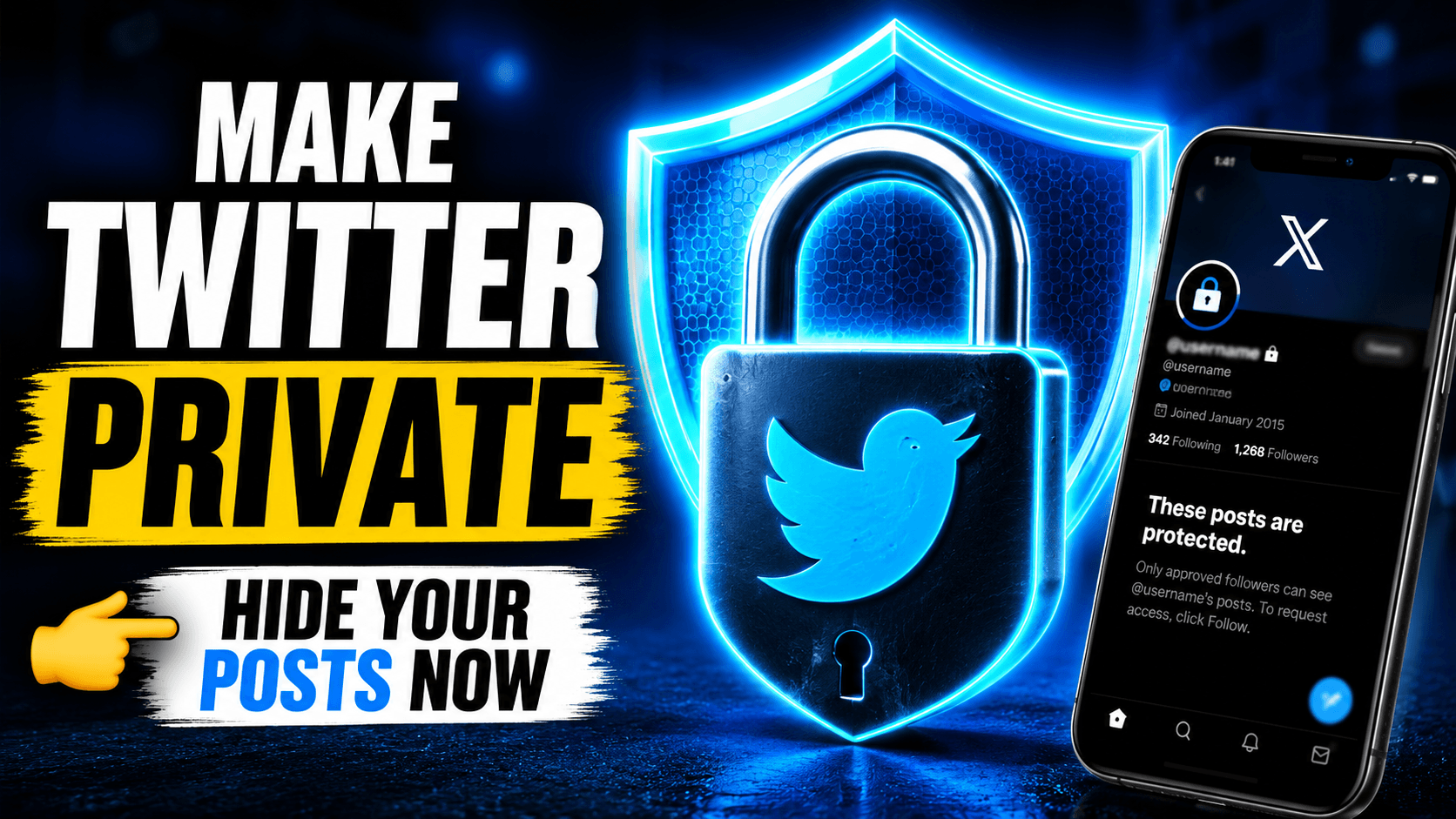
If you want to make your Twitter account private, go to Settings → Privacy and Safety → Audience and Tagging and toggle on Protect your Tweets. That is the core of it. Once you do this, only people you approve can see your tweets, and your posts will not show up in public search results or on Google.
X (formerly Twitter) does not make this setting hard to find, but the steps differ slightly depending on your device. This guide walks you through each platform, mobile and desktop, and covers everything that changes when you switch your account to private. If you are weighing the pros and cons or wondering what your followers can still see, that is all here too.
How to Make Your Twitter Account Private on iPhone (iOS)
1. Open the X (Twitter) app on your iPhone.
2. Tap your profile icon in the top left corner.
3. Select Settings and Support, then tap Settings and Privacy.
4. Go to Privacy and Safety.
5. Tap Audience and Tagging.
6. Toggle on Protect your Tweets.
7. A confirmation box will appear. Tap Protect to confirm.
Your account is now private. New follower requests will sit in a queue until you approve or deny them.
How to Make Your Twitter Account Private on Android
1. Open the X app on your Android device.
2. Tap the profile icon (top left) to open the side menu.
3. Tap Settings and Support → Settings and Privacy.
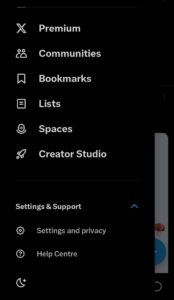
4. Select Privacy and Safety.
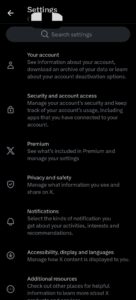
5. Tap Audience and Tagging.
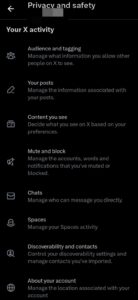
6. Enable Protect your Tweets.

7. Confirm by tapping Protect.
The steps are nearly identical to iOS. The interface may look slightly different depending on your Android version, but the menu path is the same.
How to Make Your Twitter Account Private on Desktop (PC or Mac)
1. Go to x.com and log into your account.
2. Click More in the left sidebar (the three-dot icon).
3. Select Settings and Privacy.
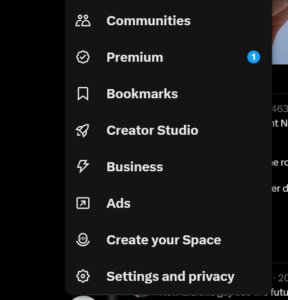
4. Click Privacy and Safety.
5. Under Your X (Twitter) Activity, click Audience, Media and Tagging.
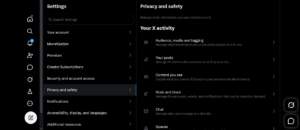
6. Check the box next to Protect your Tweets.
7. Click Protect in the confirmation pop-up.
Done. The change takes effect immediately.
What Happens When You Make Your Twitter Account Private?
Switching to a private account changes a few things. Here is a quick breakdown:
| Feature | Public Account | Private Account |
|---|---|---|
| Who sees your tweets | Everyone | Approved followers only |
| Search visibility | Public (Google, Twitter search) | Hidden from non-followers |
| Retweets of your posts | Allowed | Disabled |
| Follower requests | Instant follow | Must approve each one |
| Direct Messages | Based on DM settings | Unchanged |
| Tagged in tweets | Anyone can tag you | Audience & Tagging settings apply |
One thing to note: people who already follow you keep their access. You would need to remove them manually if you don’t want them seeing your content. Also check out this guide if you ever need to deactivate your X (Twitter) account.
Does Making Your Twitter Account Private Affect Old Tweets?
Yes. Once you protect your tweets, all your past tweets become private too, not just the new ones. Anyone who is not an approved follower loses access to your entire tweet history.
However, if someone took a screenshot or retweeted your content before you switched, that content is already out there. Protecting your account does not erase what has already been shared.
Can People Still Find Your Profile When Your Account Is Private?
Your profile can still appear in Twitter/X search results, meaning people can find your username and profile picture. But they will not be able to read your tweets unless you approve their follow request.
Your tweets also won’t show up on Google or other external search engines after you switch to private.
How to Approve or Deny Follower Requests
Once your account is private, new followers need your approval. Here’s how to manage requests:
1. Tap your profile icon and go to Settings and Privacy.
2. Select Privacy and Safety → Followers.
3. You will see a list of pending requests.
4. Tap the checkmark to approve or the X to deny.
You can also go to Notifications → Follower Requests for a quicker route on mobile.
How to Remove Followers From a Private Twitter Account
After protecting your tweets, you need to manually remove existing followers. To remove someone:
1. Go to their profile.
2. Tap the three-dot menu (⋯) in the top right.
3. Select Remove this follower.
They won’t get a notification. They can still send a new follow request, which you can then deny.
Private vs. Public Twitter Account: Which Should You Choose?
Here is a direct comparison to help you decide:
Go private if:
- You want to control who reads your tweets.
- You are sharing personal content or opinions you don’t want indexed.
- You use Twitter to communicate with a specific group (friends, colleagues).
- You are building a more filtered, curated audience.
Stay public if:
- You are building a brand, business, or content creator presence.
- You want your tweets to be discovered and shared widely
- You rely on retweets to grow your reach
- You are a journalist, creator, or public figure.
Most people who go private do it for peace of mind rather than any specific threat. That is a perfectly valid reason.
How to Make Your Twitter Account Public Again
Changed your mind? Here’s how to switch back:
1. Go to Settings and Privacy → Privacy and Safety → Audience, Media and Tagging.
2. Toggle off Protect your Tweets.
3. Confirm by tapping Unprotect.
Your tweets go public again immediately. Anyone who was following you during the private period stays following you.
Does Twitter Notify Anyone When You Make Your Account Private?
No. Twitter doesn’t send notifications to your followers when you switch from public to private. They’ll only notice if they try to retweet one of your posts and find they can’t.
Can You Have a Private Twitter Account and Still Use Lists?
Twitter Lists work a bit differently when your account is private:
- You can still add others to lists.
- Others can still add you to their lists (you can opt out in settings).
- Your tweets won’t appear in public list feeds if your account is private.
To stop people from adding you to lists: go to Privacy and Safety → Discoverability and Contacts and adjust the list settings there.
Frequently Asked Questions (FAQs)
Does making my Twitter account private hide my followers and following list?
No. Your followers and following count are still visible to anyone who finds your profile. The list of who those people are may also be visible depending on your settings.
Can I make only some tweets private instead of all of them?
No. Twitter does not let you protect individual tweets. It is all or nothing; either your entire account is private or it isn’t.
If I make my account private, can I still use Twitter ads or promoted tweets?
Promoted tweets require a public account. If you switch to private, you won’t be able to run ads until you make your account public again.
Does a private Twitter account still get verified or have the X Premium badge?
Yes. Your subscription status and verification badge are separate from your privacy settings. You can be verified and private at the same time.
Can someone screenshot my tweets even if my account is private?
Yes. There is no technical block on screenshots. Private accounts limit who can see your tweets, but approved followers can still capture and share them outside of X.
What happens to my Twitter Space or Community activity when my account is private?
Twitter Spaces you host or join may still be visible to others depending on the Space settings. Communities have their own privacy controls separate from your account privacy.
Conclusion
Making your Twitter account private is a simple change with real impact on who can see your content. Whether you are locking down for personal reasons, managing your online presence, or just taking a break from public posting, the Protect your Tweets toggle does the job in seconds.
Just remember: it doesn’t scrub your past from the internet, and your existing followers keep their access. If you want full control, pair the privacy setting with a follower review and adjust your tagging and discoverability settings too.
 Share this post