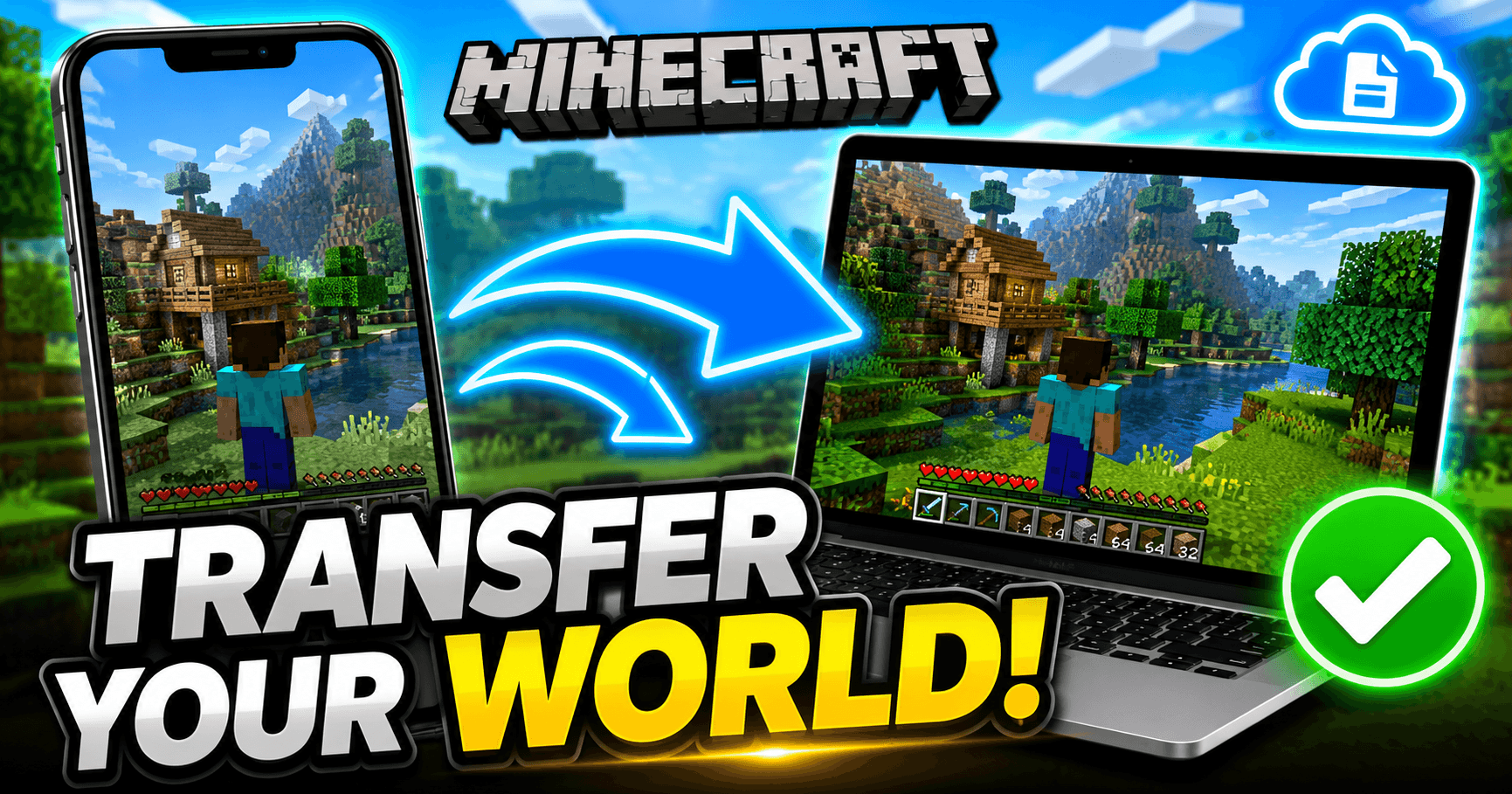
Minecraft doesn’t back your worlds up to the cloud automatically, so moving one to a new device means moving the actual world files yourself. The method depends on two things: which edition you play (Java or Bedrock) and whether your target device lets you access its file system directly. Consoles don’t, phones and PCs mostly do, and that split determines everything below.
Get the edition wrong and this goes badly. Java and Bedrock save worlds in incompatible formats, so copying a Java world folder into a Bedrock installation won’t open it, it’ll just sit there unrecognized. Confirm your edition before you touch any files.
Before you start: back up the world folder
Copy the world folder to a second location like a USB drive, cloud storage, or even just a duplicate folder on the same device before you move or delete anything. If a transfer gets interrupted partway through, or you paste into the wrong folder, an untouched backup is the difference between losing an afternoon and losing eighteen months of a survival world. This step takes thirty seconds, and it’s the one most guides skip.
Transferring a Bedrock Edition world
Bedrock is the version used on mobile, Windows, Xbox, PlayStation, and Switch, and it stores each world as its own folder inside a minecraftWorlds directory. Where that directory lives depends on the device:
- Android: `Android/data/com.mojang.minecraftpe/files/games/com.mojang/minecraftWorlds`
- iOS/iPadOS: Open the Files app, then On My iPhone/iPad > Minecraft > games > com.mojang > minecraftWorlds
- Windows (Bedrock): `%localappdata%\Packages\Microsoft.MinecraftUWP_8wekyb3d8bbwe\LocalState\games\com.mojang\minecraftWorlds`
Method 1: Manual copy (mobile and Windows only).
Locate the folder for the specific world, Minecraft names these with a randomized string, so check the world’s display name inside the folder if you’re not sure which one it is. Copy that folder to cloud storage, a USB-C drive, or AirDrop, then paste it into the matching minecraftWorlds path on the new device. The world should appear in your world list the next time you open Minecraft.
Method 2: Realms (works on every Bedrock platform, including consoles).
Consoles don’t expose a file browser, so this is the only option for moving a world onto or off of an Xbox, PlayStation, or Switch. From the pause menu on your source device, open your world settings and upload it to a private Realm, this requires an active Realms subscription or the free trial. Sign into the same Microsoft account on the destination device, open the Realm, and download the world from there. It’s slower than a manual copy, but it’s the one method that works everywhere, which is why it’s worth using even on PC if you’re moving between more than two devices.
Transferring a Java Edition world
Java worlds live inside the `saves` folder of your main game directory, and the path differs by operating system:
- Windows: press Win + R, type `%appdata%`, and open .minecraft\saves
- macOS: `~/Library/Application Support/minecraft/saves`
- Linux: `~/.minecraft/saves`
Each subfolder inside `saves` is one world, named however you named it in-game. Copy the whole folder, not just the level.dat file inside it, to an external drive or cloud storage, then drop it into the `saves` folder on the new computer. Launch Minecraft, and the world shows up in your singleplayer list with no import step required.
If you’re moving to a computer that’s never run Minecraft before, launch the game at least once first so the `.minecraft` folder structure gets created. Pasting a saves folder into a directory that doesn’t exist yet is the most common reason this fails on a fresh install.
Can you transfer a world between Java and Bedrock?
Not directly. The two editions use different save formats, different block IDs in places, and different world generation logic, so a Java save simply won’t open in Bedrock and vice versa. Third-party conversion tools exist and can carry over terrain and builds reasonably well, but conversions aren’t officially supported by Mojang, and you should expect some loss, command blocks, certain redstone behavior, and mob data are the usual casualties. If you’re choosing an edition specifically because a friend plays the other one, it’s worth knowing upfront that this isn’t a quick fix.
Frequently asked questions (FAQs)
How do I transfer my Minecraft world to a new phone?
Locate the world’s folder inside minecraftWorlds on your old phone, copy it to cloud storage or a cable transfer, then paste it into the same folder path on the new phone. If both phones are signed into the same Microsoft account, uploading the world to a private Realm and downloading it on the new device works just as well and avoids fumbling with file paths.
Can you transfer a Minecraft world from Java to Bedrock?
Not natively, the two editions use incompatible save formats. Third-party converters can move terrain and builds across with partial success, but Mojang doesn’t officially support it, and features like command blocks and some redstone setups often don’t survive the conversion.
How do I transfer a Minecraft world to a different console?
Use Realms. Consoles like Xbox, PlayStation, and Switch don’t give you access to the underlying file system, so uploading your world to a private Realm from the source console and downloading it on the destination console (signed into the same Microsoft account) is the only supported path.
Where are Minecraft world files stored?
It depends on edition and platform. Bedrock stores each world as a folder inside a minecraftWorlds directory (location varies by device), while Java Edition keeps worlds in a saves folder inside the main .minecraft directory. Both are listed with exact paths above.
Do I lose my world if I switch devices?
Only if you don’t transfer the files first. Minecraft doesn’t sync worlds automatically, so a world exists only on the device it was created on until you manually copy it or move it through Realms. Back up the folder before switching devices so a failed transfer doesn’t cost you the world.
 Share this post