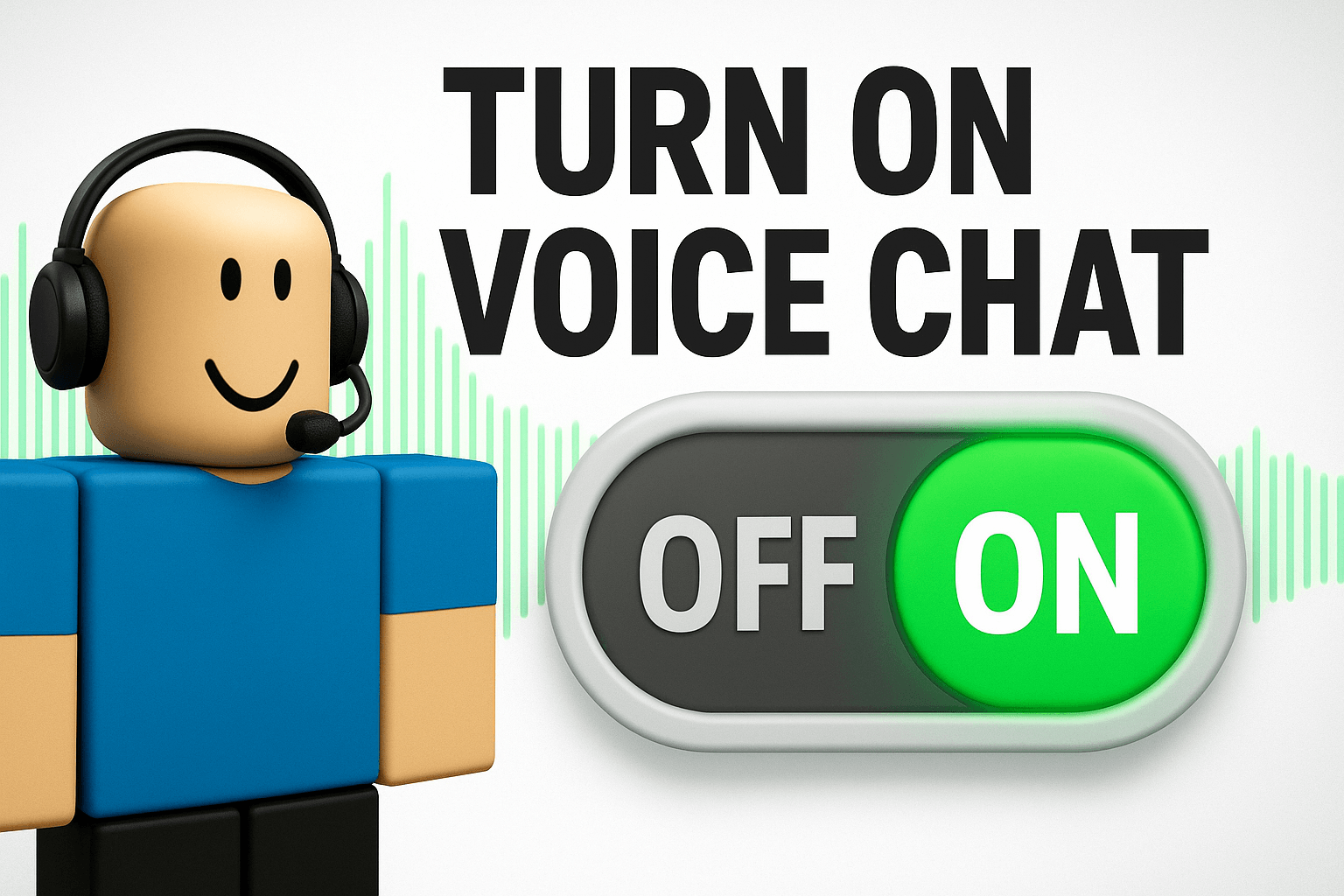
If you want to know how to turn on voice chat in Roblox, you are in the right place. Voice chat is not on by default, and you will need to meet a few requirements before this feature can appear on your dashboard.
In this article you will learn how to enable voice chat on mobile and desktop, what conditions apply, and how to check if it works.
What is Voice Chat in Roblox
Voice chat lets you speak to other players using a microphone instead of typing. It only works when you and the people you talk to are in a game (or experience) that supports voice chat.
You should note that not all games on Roblox support it. Even after you enable voice chat for your account, it will work only in games marked as “voice-enabled.”
Who Can Use Voice Chat
To get voice chat, you need to meet these requirements:
- Your account must be 13 years old or older.
- You must complete a verification step: phone number verification, ID verification, or another age-check method (depending on region).
- You need a working microphone (built-in or external).
Not all regions support voice chat. If Roblox does not support it in your country, you might not see the option at all, even if you meet the requirements.
The very first thing to do before moving forward with this guide is completing age verification. Here is a screenshot of a successful age verification.
How to Turn On Voice Chat (Step by Step)
Here is how to enable voice chat on Roblox. This guide covers mobile, PC, and web.
On Mobile (iOS or Android)
1. Open your Roblox app and log in.
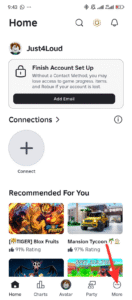
2. Tap on the More tab (three dots or a similar menu icon).
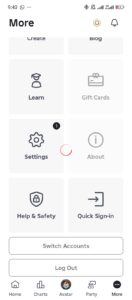
3. Go to Settings.
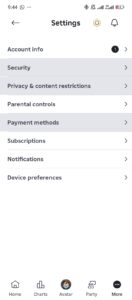
4. Tap Privacy and content restrictions.
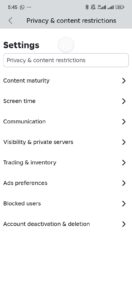
5. Go to Communication → Voice Chat.
6. Toggle the “Use microphone to chat with voice” selector to ON. It usually changes color (e.g., grey → green) when enabled.
7. A pop-up will ask you to confirm microphone access and consent to voice-recording terms. Accept to complete setup.
On Desktop or Web
1. Log in to Roblox in your browser or desktop app.
2. Click the gear icon (⚙️) at the top right.
3. Select Settings from the dropdown.
4. Click Privacy or Privacy and content restrictions.
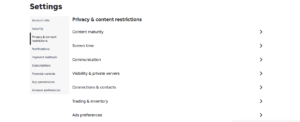
5. Find Communication → Voice Chat.
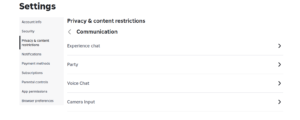
6. Toggle on the “Use microphone to chat with voice” option. It should turn green or blue.
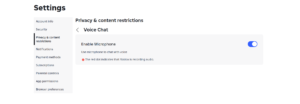
7. Confirm the consent prompt if it appears.
After you toggle voice chat on, Roblox may ask for your permission again when you enter a voice-enabled game. That gives you control over when the mic is active.
Some devices and operating systems may also ask you to grant microphone access at the OS level. Make sure your system settings allow Roblox to use the mic. Also check out our guide on How to Check Roblox Username Availability for free.
How to Use Voice Chat In-Game
Once you enable voice chat for your account and join a voice-enabled game:
- You will see a microphone icon near your avatar or on the screen.
- Tap or click that icon to mute/unmute yourself. Muted mic shows a slash sometimes.
To talk to another player, you need to be within audio range (some Roblox games use spatial/positional voice chat).
You can mute or block someone when they misuse voice chat in the game. The option appears near their name or avatar.
You may also report voice-chat abuse via Roblox’s moderation tools.
Common Issues and How to Fix Them
| Problem | What to check or do |
|---|---|
| You don’t see “Voice Chat” in settings | You may not meet the age or verification requirements. |
| You are outside supported region | Roblox may block voice chat in your region unless you pass ID verification. |
| Mic toggle is on but no sound | Check your device’s audio settings. Confirm Roblox has mic permissions. Try another game that supports voice chat. |
| Mic icon never appears in game | The game may not support voice chat even if your account has it. Check the game’s description/details. |
| Others can’t hear you | Your mic might be muted in the game. Or OS-level mic permissions are disabled. |
Why You Might Not Get Voice Chat Right Away
Voice chat remains off by default, even for eligible users. You must manually turn it on.
Roblox limits feature access: only certain countries or users who pass ID / age / phone verification get it.
Game developers decide if a specific experience allows voice chat. Even with the feature turned on, some games will not support voice.
If your account is under 13, safety rules prevent you from getting voice chat at all.
Quick Checklist: Before You Start
You are 13 or older.
You have verified your phone number or identity (depending on region).
You have a working microphone connected.
Roblox has permission to use your microphone (OS-level).
You joined a game that lists “Voice Chat supported” in its details.
If all of the above are true, follow the enable steps given earlier, and you should get voice chat working.
FAQs
Why can’t I see the Voice Chat option after verifying my age?
Roblox may restrict voice chat by specific region or company policies. So some regions or accounts may still not be able to use this feature.
If you cannot find the voice chat settings after verifying your phone number or ID, it might likely be due to restrictions.
Can console players use chat in Roblox?
Yes. You can now use voice chat on PlayStation 4 and 5 consoles. But you first need to enable Voice Chat settings through the Roblox mobile app, desktop app, or Roblox.com.
Note that the same rules appear to console users. You need to be at least 13 years old, and you must first verify your phone number or verify your ID.
How do I mute someone else’s voice chat?
In-game, click the speaker or microphone icon next to their name or over their avatar. That mutes them for your session.
Is a microphone required?
Yes. Without a working mic (or headset), voice chat will not work. Built-in mics or external headsets are fine.
What if I don’t want to use voice chat?
You can keep the mic toggle off. Roblox leaves voice chat off by default. You only activate it if you want it.
Conclusion
Turning on voice chat in Roblox takes only a few minutes, as long as you meet the age and verification requirements and have a working mic.
Once you toggle voice chat on in settings and join a game that supports it, you can talk to other players instead of typing.
Just remember, not all games support voice chat, and Roblox monitors voice chat to keep things safe. Use mute or block to avoid problems, and report abuse if you see it.
 Share this post