In this guide, you will learn how to change your YouTube channel name on desktop and mobile. This article also explains what happens after you make the change, and tips on mistakes to avoid when changing the name of your YouTube channel.
Can You Change Your YouTube Channel Name?
Yes, you can change your channel name any time. YouTube gives users the option to update their channel name and handle separately. This means your main display name can be different from the @handle viewers use to tag you.
Key points:
- You can change your name on desktop, Android, or iPhone.
- You can update your handle too, but you do not have to.
- Your channel URL will not change unless you update your handle.
- You do not lose subscribers when you change your name.
Many creators change their YouTube channel name at some point. This can be due to different reasons like wanting something cleaner, shorter, or closer to what the content is about.
How to Change YouTube Channel Name on Desktop
Follow these steps on a laptop or PC:
1. Open YouTube and sign in.
2. Click your profile picture.
3. Select YouTube Studio.
4. In the left sidebar, select Customization.
5. Under profile tab, look for your channel name.
6. Under Channel name, type your new name.
7. Click Publish in the top right corner.
After a channel name change, YouTube will update you details across the platform. Viewers will now see your new name on your videos, comments, and in search results.
How to Change YouTube Channel Name on Mobile (iPhone & Android)
The steps on the mobile app are quick:
1. Open the YouTube app.
2. Tap your profile picture.
3. Select Your channel or Tap View channel.
4. Tap the Pencil icon to open channel settings.

5. Tap the pencil icon next to your name.
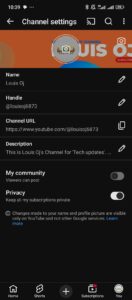
6. Type your new name.
7. Tap Save.
To change your YouTube channel name on mobile, you do not need the YouTube Studio app for this. The regular YouTube app is enough to update channel settings.
How to Change Your YouTube Handle
Your handle is the @name that identifies your channel, similar to usernames on other platforms. This name is unique and is attached to your YouTube profile link.
Steps on desktop
1. Open YouTube Studio.
2. Go to Customization → Basic info.
3. Find the Handle section.
4. Type your new handle.
5. Click Publish.
Steps on mobile
1. Go to YouTube mobile app and tap on your profile picture on the bottom navigation.
2. Tap View channel.
3. Tap Edit channel or Pencil Icon on your profile.
4. Tap the pencil icon beside the handle field.
5. Type a new handle.
6. Tap Save.
Handles must be unique, so you may need to try a few options. You can use our YouTube handle checker to confirm your name is available before trying to change.
How Many Times Can You Change Your YouTube Name?
YouTube gives you the option to change your channel name multiple times. There is no hard limit, but YouTube may pause changes if you switch names too often in a short time.
A safe rule:
- You can change your name a few times per month without issues.
- If the button stops working, wait a bit before trying again.
On the other hand, You can change you handle name once every 14 days. Since the handle name is unique and becomes your channel URL, there is a limit to how many times you can change it per month.
Does Changing Your YouTube Channel Name Affect Your Views?
No. Views and watch time stay the same when you change your name. Your videos keep ranking the same.
Here is what does and does not change:
| Item | Changes? |
|---|---|
| Subscribers | No |
| Views | No |
| Watch time | No |
| Monetization | No |
| Channel URL | Only if you change your handle |
| Branding | Yes, your name updates everywhere |
| Search results | Your channel name updates, but your rankings remain stable |
What to Consider Before Changing Your YouTube Channel Name
Before you update your channel name, think about these points:
1. Branding
Pick a name that matches your content. Viewers remember short names more easily.
2. SEO
A simple name can help with searches. If your channel focuses on a topic, consider adding a keyword in your name.
3. Recognition
If your viewers know you by your current name, switching may cause some confusion. If you change names often, people might not remember your channel.
4. Social Media Match
It helps if your YouTube name matches your usernames on other platforms. This keeps things consistent.
How to Pick a Good YouTube Channel Name
Here are a few tips you can follow:
- Keep it short.
- Use easy spelling.
- Make it specific to your niche or identity.
- Avoid numbers unless they matter.
- Avoid long words.
- Check if the handle is available.
- Make sure it looks clean as a channel logo.
Examples of clean name formats
- YourFirstName + Media
- YourName + Tutorials
- TopicName + Guide
- ShortBrandName
- YourNameTV
Why Your YouTube Channel Name Won’t Change
Sometimes the name doesn’t update right away. Here is why:
1. Sync delay
YouTube may take a short time to update your new name everywhere.
2. App cache
Your phone may show the old name until the app refreshes.
3. Handle conflict
If your handle conflicts with another user, your channel name might update but your handle won’t.
4. Too many changes
YouTube may pause your editing options if you change things too often.
Fixes:
- Restart the app.
- Clear the YouTube app cache.
- Log out and log back in.
- Wait a few minutes and try again.
How Changing Your Channel Name Impacts Branding
YouTube channels grow through recognition. If you use your personal name, changing it affects how people search for you. If you use a brand name, you should think about long-term consistency.
Pros of changing your name
- Helps you match your content.
- Lets you rebrand.
- Makes your channel look more professional.
- Helps with search visibility.
Cons
- Some viewers might not recognize your new name.
- Older links or fan posts might not match the new name.
- You may need to update your logo, banner, and social media.
Should You Change Your YouTube Channel Name?
Ask yourself these questions:
- Does your current name match what you post?
- Do new viewers understand your channel by the name alone?
- Is the name easy to spell?
- Does the name create confusion?
- Does it match your long-term plans?
If the answer is yes to most of these, changing your name makes sense.
Checklist Before You Change Your Channel Name
Use this quick checklist:
- Pick a simple and clear name.
- Test different ideas.
- Check if the handle is available.
- Update your logo and banner after you change the name.
- Announce the change to your viewers (optional but helpful).
FAQs
Does changing my YouTube channel name delete my channel?
No. Your channel stays the same. Only the name updates.
Can people still find me after I change my name?
Yes. People who search for your handle or your videos will still find you.
Will my custom URL change?
Yes, if your handle changes.
No, if you only change your display name.
Does changing my channel name affect monetization?
No. Monetization stays active.
Can I switch back to my old name?
Yes. You can change it again any time.
Conclusion
The steps to change your YouTube name on mobile and desktop are easy and straightforward. All you need to do is go to channel settings and make changes as I have explained in this article.
After you change your channel name or handle, your views, subscribers, and monetization stay the same.
 Share this post