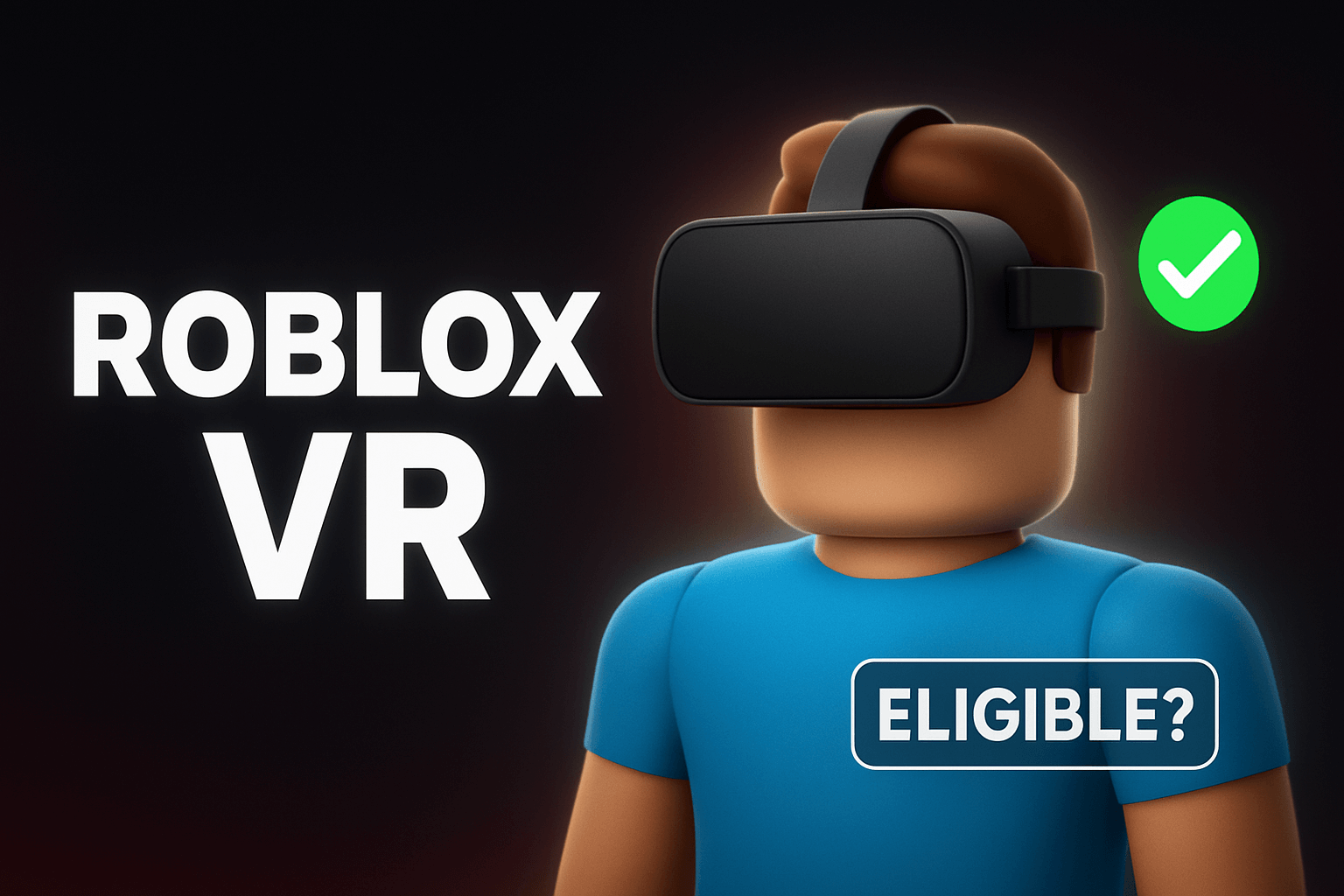
You need to be eligible before you can play Roblox VR games using your VR headset. If you already own a VR headset and Roblox does not start in VR mode, or the VR option never appears, then this guide is for you.
This guide explains the process to make your Roblox account eligible for VR. You will learn the exact PC specs you need, supported VR devices, the right Roblox settings, and the most common errors you will face.
You also get a step-by-step setup for Oculus Quest, Quest 2, Quest 3, Quest Pro, HTC Vive, Valve Index, and Windows Mixed Reality.
What Makes a Roblox Account Eligible for VR?
Roblox does not use a special “VR-eligible account.”
It uses VR-eligible hardware + VR-compatible settings on your current account. This means the issue you are having is most likely related to your hardware and setup and not your account.
Roblox now allows accounts under 13 years old to play in VR mode, so there is no age restrictions for VR.
To play Roblox in VR, you need:
- A VR headset that supports PC VR or standalone VR with link support
- A VR-ready Windows PC (for PC VR)
- Roblox installed from the official website or Microsoft Store
- VR mode turned on inside Windows or SteamVR
- The Roblox desktop app running in VR-compatible mode
There is no age restriction and no special permission needed on your account. Your device and software setup decide everything.
VR Headsets That Work With Roblox
Roblox supports headsets that run SteamVR or Meta Quest Link/Air Link.
Compatible Devices
| Headset | Works With Roblox? | Method |
|---|---|---|
| Meta Quest 1 | Yes | Link Cable / Air Link |
| Meta Quest 2 | Yes | Link Cable / Air Link |
| Meta Quest 3 | Yes | Link Cable / Air Link |
| Meta Quest Pro | Yes | Link Cable / Air Link |
| Oculus Rift S | Yes | Native PC VR |
| HTC Vive | Yes | SteamVR |
| Valve Index | Yes | SteamVR |
| Windows Mixed Reality | Yes | SteamVR |
Not Supported
- Standalone mode using Quest without a PC
- Mobile VR headsets
- PlayStation VR
PC Requirements for Roblox VR
Roblox itself is light, but VR apps need a stronger PC.
Minimum Specs
- GPU: GTX 1050 Ti or equivalent
- CPU: i5-4590 or equivalent
- RAM: 8 GB
- USB 3.0 port: for wired Quest Link
- Windows 10 or Windows 11
Recommended Specs
- GPU: GTX 1660 Super / RTX 2060 or better
- CPU: i5-11400 / Ryzen 5 3600 or better
- RAM: 16 GB
- Stable Wi-Fi 6 router for Air Link
Roblox VR performance depends more on GPU than CPU.
How to Make Your Roblox Account Eligible for VR (Step by Step)
Below is the setup that makes Roblox show the VR toggle and launch in VR mode.
1. Update Your VR Headset Software
Meta Quest (All Models)
- Open the Meta app.
- Update the headset firmware.
- Update the Meta PC app if using Link.
SteamVR Headsets
- Open Steam.
- Install or update SteamVR.
2. Turn On VR Mode in Windows / SteamVR
For Meta Quest Link
1. Open the Meta PC App.
2. Go to Settings → Beta.
3. Turn on Air Link or prepare your Link Cable.
4. Start Link Mode.
For SteamVR
1. Open SteamVR.
2. Run Room Setup.
3. Confirm controllers are paired.
SteamVR must be running before you open Roblox.
3. Turn On VR Mode in Roblox
Roblox enables VR automatically when it detects SteamVR or Oculus VR running.
Check the VR Status
1. Open Roblox Player (not browser mode).
2. Press Esc → Settings.
3. Look for the VR Mode option.
4. Set it to On.
If you do not see it, move to the troubleshooting section later.
How to Play Roblox in VR on Meta Quest 2 / 3 / Pro
Follow this sequence:
With Link Cable
1. Plug your Link cable into a USB 3.0 port.
2. Open the Meta PC App.
3. Put on your headset and click Enable Link Mode.
4. Open SteamVR or stay in Oculus Mode.
5. Open Roblox on your PC.
6. Choose a VR-compatible game.
7. Roblox should auto-switch into VR mode.
With Air Link
1. Use a Wi-Fi 6 router.
2. Connect PC by Ethernet, Quest by Wi-Fi.
3. Open the Meta PC App → Settings → Beta → Air Link.
4. Pair your headset.
5. Start Air Link.
6. Open Roblox.
How to Play Roblox in VR on Valve Index, HTC Vive, and WMR
1. Start SteamVR.
2. Confirm tracking is active.
3. Open Roblox Player from your PC.
4. Launch a VR-supported game.
5. Roblox enters VR mode when SteamVR is active.
Most Roblox VR Games Expect Standing Mode
Most Roblox VR games assume:
- Standing or full-room play
- Two tracked controllers
- 360° turning
If your play space is small, switch to VR Stationary/Seated Mode in Oculus or SteamVR settings.
How to Tell If a Roblox Game Supports VR
Roblox does not show a VR badge in Studio yet, so creators list VR support manually.
Ways to check:
Check the game’s description
Look for “VR Supported” or “VR” in the title
Read player reviews
Test by joining with VR mode on
Popular Roblox VR games:
- VR Hands
- Vibe VR
- Ragdoll Engine VR modes
- Cook Burgers (VR mode)
Troubleshooting: Roblox VR Mode Not Showing
Here are the most common problems and how you can fix them fast.
1. VR Mode Missing in Roblox Settings
Try:
- Start SteamVR or VR Link before Roblox
- Restart Roblox Player
- Update GPU drivers
- Switch Roblox graphics to Automatic
- Log out and log back in
2. Controls Not Tracking in Roblox
Fixes:
- Re-pair your controllers
- Calibrate your room in SteamVR
- Set Controller Input to “Oculus Touch” or the matching option
3. Roblox Opens on PC Monitor Only
This happens when SteamVR is closed in the background.
Fix:
- Close Roblox
- Open SteamVR
- Reopen Roblox
- Roblox VR Is Laggy
Try the following:
- Lower Roblox Graphics settings
- Use Link Cable instead of Air Link
- Close background apps
- Switch PC from Wi-Fi to Ethernet
Can You Use Roblox VR Without a PC?
Not yet. Roblox VR requires PC VR because Roblox Mobile does not support VR features.
Quest users must use either Meta Link Cable or Air Link.
Standalone mode does not support Roblox VR.
Safety Tips for Roblox VR
VR games inside Roblox often run physics-heavy scenes.
To keep your setup stable:
- Keep your play space clear
- Use wrist straps
- Keep hydration nearby
- Take breaks every hour
- Roblox VR games can move fast.
Short pauses help your balance and focus.
FAQs
Why doesn’t my Roblox account show the VR toggle?
Your account does not control VR access. Roblox hides the toggle until it detects SteamVR or the Oculus Runtime. Start your VR software before opening Roblox.
Do I need a new Roblox account for VR?
No. Any account works with VR if you have the right setup, like a supported VR headset and system requirements. Uou can use our Roblox username checker to wheck if a username is available before you change you name.
Can kids use Roblox in VR?
Roblox does not restrict VR use by age, but many VR headsets have manufacturer age guidelines.
Follow your device’s safety guide.
Does Roblox VR support full room-scale?
Yes, if your VR headset supports room-scale tracking. Many Roblox VR games are designed for standing movement.
Why does Roblox VR look low-resolution?
Roblox is built for low hardware loads. You can improve clarity by raising the render resolution in SteamVR or the Meta PC app.
Why do my arms look long in Roblox VR?
Some games scale avatars in unusual ways. This is normal in older VR titles.
Try a different VR experience if it feels odd.
Conclusion
Now you know that making your Roblox account eligible for VR is not an impossible process and is also not restricted by age. All you need to do is get a supported VR headset, the right software running, and the correct settings inside Roblox.
Once your PC recognizes your VR device, Roblox picks it up and switches to VR mode. The steps in this guide are all you need to play Roblox VR with stable tracking and clean performance.
 Share this post